Lecture 3

R Fundamentals

Byeong-Hak Choe

SUNY Geneseo

September 2, 2026

☁️ Posit Cloud & R Packages

☁️ Posit Cloud

  • Posit Cloud (formerly RStudio Cloud) is a web service that delivers a browser-based experience similar to RStudio, the standard IDE for the R language.

  • For our course, we use Posit Cloud for the R programming component.

    • If you want to install R and RStudio on your laptop, you use my office hours.

🚀 Getting Started with Posit Cloud

  1. Go to Posit Cloud and click Log In in the top-right corner.
  2. Choose the Sign Up tab from the menu bar.
  3. Create your account using one of the following:
    • Google account, or
    • Your geneseo.edu or personal email
  4. After logging in, go to New ProjectNew RStudio Project.
  5. Create a new R script:
    • Click the + icon (top-left), or
    • Click to FileNew FileR script from the menu bar

📝 Posit Cloud Environment

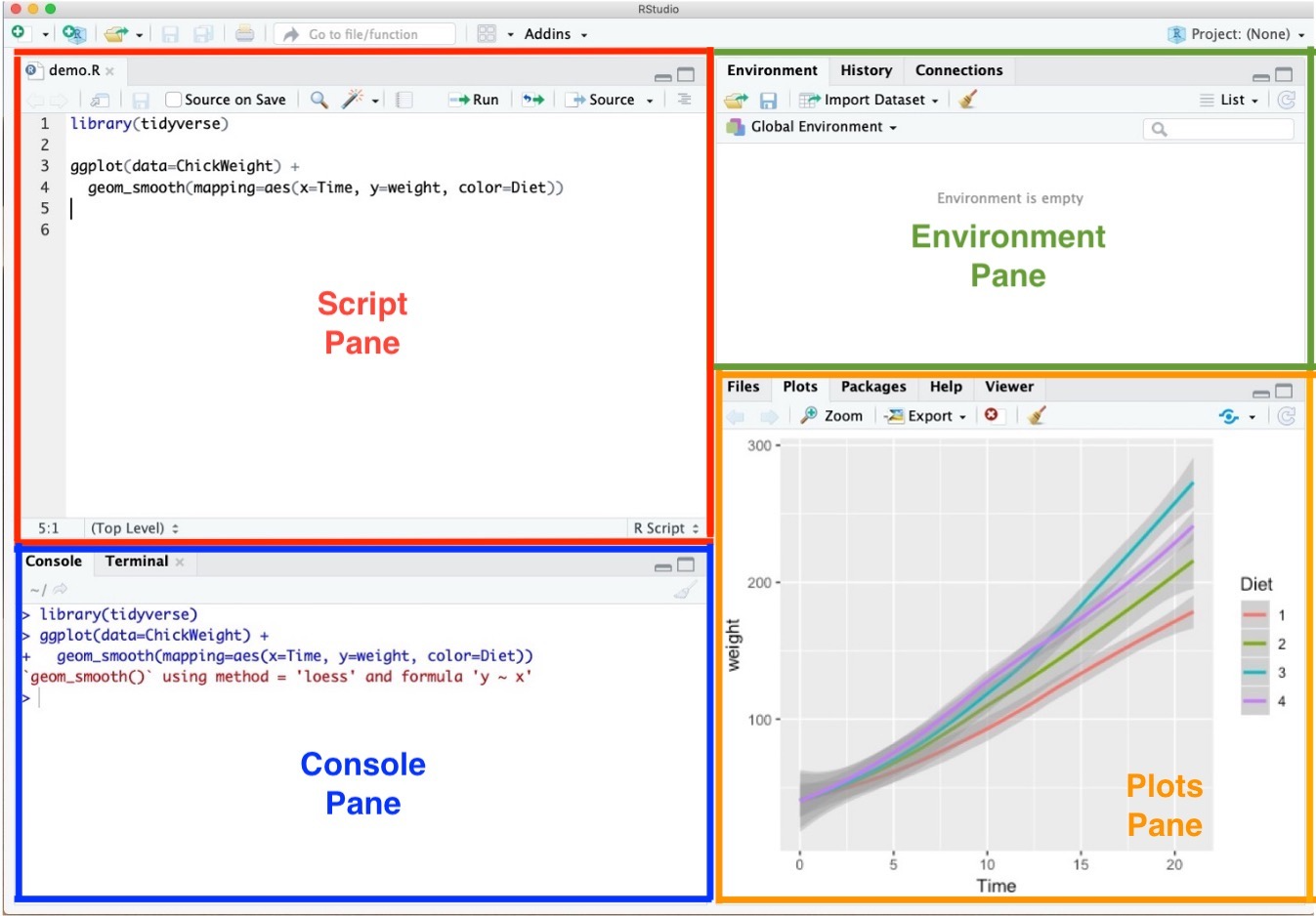
  • Script Pane is where you write and save R commands in a script file.
    • An R script is simply a plain text file containing R code.
    • Posit Cloud (RStudio Cloud) automatically color-codes your code to make it easier to read.
  • Try typing a <- 1 in the Script Pane.
    • With the cursor ( ┃ ) on the same line, run the line of code using:
      • Ctrl + Enter (Windows)
      • command + return (Mac)

⌨️ Posit Cloud Environment

  • Console Pane allows you to interact directly with the R interpreter and type commands where R will immediately execute them.

🧰 Posit Cloud Environment

  • Environment Pane shows everything you have created in R so far.
    • For example, if you make a variable or a data frame, it will appear here.
    • Think of it like a workspace where R keeps track of all the things you’re working on.

📈 Posit Cloud Environment

  • Plots Pane contains any graphics that you generate from your R code.

📦 R Packages

  • R packages are collections of ready-made tools for R.

    • A package usually includes functions (pre-written commands), data sets, and sometimes extra code to make your work easier.
  • Many packages are already built into R, and thousands more can be installed from the internet (like downloading apps on your phone).

  • Why use packages?

    • They save time—you don’t need to write everything from scratch.
    • They give you access to powerful tools for data analysis, visualization, and more.
  • Examples:

    • readr → for reading data files quickly
    • dplyr → for cleaning and transforming data
    • ggplot2 → for making beautiful graphs and charts

🌐 tidyverse

  • The tidyverse is a collection of R packages built for data analytics.
    • They share a common design philosophy, grammar, and data structures.
  • Popular packages in the tidyverse include:
    • readr → data reading
    • dplyr → data transformation
    • ggplot2 → data visualization

📦 Installing R Packages with install.packages("packageName")

install.packages("tidyverse")
  • Use the base R function install.packages("packageName") to install new packages.
  • Example: to install the tidyverse, type and run the command above in the R Console.

Note

If a pop-up appears: While running the installation code, R may ask whether to create a personal library. If you are unsure, choose No. You may not see this message at all; that is normal.

📂 Loading R Packages with library(packageName)

library(tidyverse)
mpg
  • After installation, use library(packageName) to load a package into your R session.
  • Example: running library(tidyverse) loads all the R packages in the tidyverse, including readr, dplyr, and ggplot2.
  • Once loaded, you can use their functions and datasets.
  • For instance, mpg is a built-in dataset from ggplot2, which is part of the tidyverse.

🔄 Workflow for R packages: Install → Load → Use

  1. Install (once)
install.packages("tidyverse")
  1. Load (At the top of every new R script, load the package:)
library(tidyverse)
  1. Use (functions & datasets)
df <- read_csv("https://bcdanl.github.io/data/spotify_all.csv")
  • read_csv() function comes from the readr package, which is part of the tidyverse.

Note

  • 🔑 Tip: In Posit Cloud, you need to install a package once per project.
  • After that, just load it whenever you start a new R script.

🗂️ Workflow: Naming and File Management

  • Always save your R script for each class session.
    • Go to File → Save (or Save As…), or
    • Click the 💾 save icon.
  • ✅ Recommended file naming style (no spaces):
    • Example: danl-101-2026-0902.R
  • Tips for naming files:
    • ❌ Avoid spaces in file names.
    • ✅ Use lowercase letters and hyphens (-) / underscores (_)

✍️ Workflow: Code and comment style

  • The two main principles for coding and managing data are:
    • Make things easier for your future self.
    • Don’t trust your future self.
  • The # mark is R’s comment character.
    • In R scripts (*.R files), # indicates that the rest of the line is to be ignored.
    • Write comments before the line that you want the comment to apply to.

⌨️ Workflow: Shortcuts in Posit Cloud

  • Windows
    • Alt + - adds an assignment operator (<-)
    • Ctrl + Enter runs a current line of code
    • Ctrl + Shift + C makes a comment (#)
    • Ctrl + Shift + R makes a section (# Section - - - -)
  • Mac
    • option + - adds an assignment operator (<-)
    • command + return runs a current line of code
    • command + shift + C makes a comment (#)
    • command + shift + R makes a section (# Section - - - -)

↩︎️ Workflow: Shortcuts in Posit Cloud

  • Ctrl (command for Mac Users) + Z undoes the previous action.
  • Ctrl (command for Mac Users) + Shift + Z redoes when undo is executed.

🔍 Workflow: Shortcuts in Posit Cloud

  • Ctrl (command for Mac Users) + F is useful when finding a phrase (and replace the phrase) in the RScript.

⚡ Workflow: Auto-completion

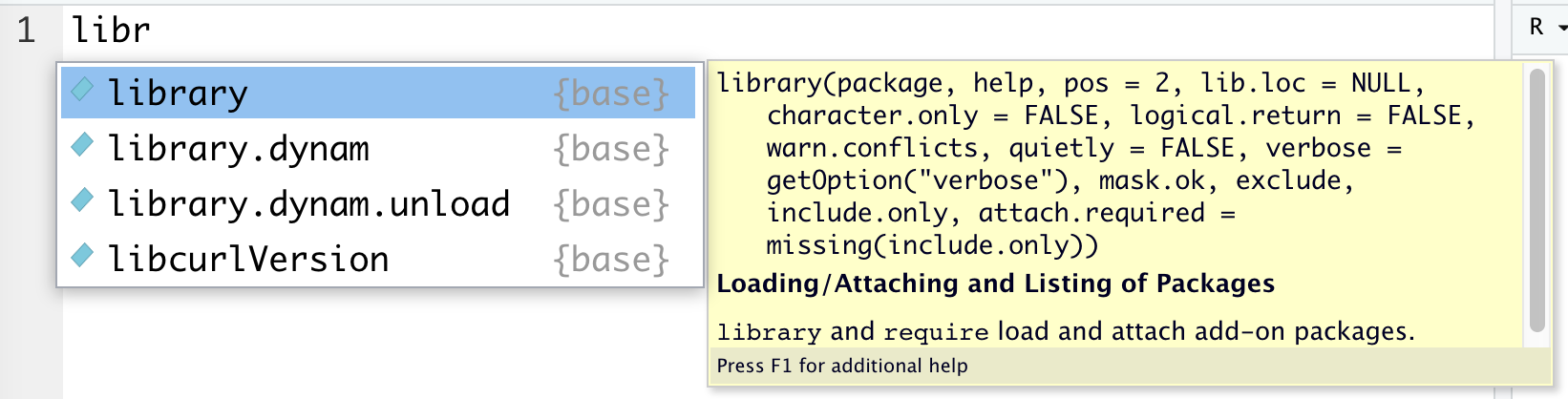
libr

  • Auto-completion of command is useful.
    • Type libr in the RScript in RStudio and wait for a second.

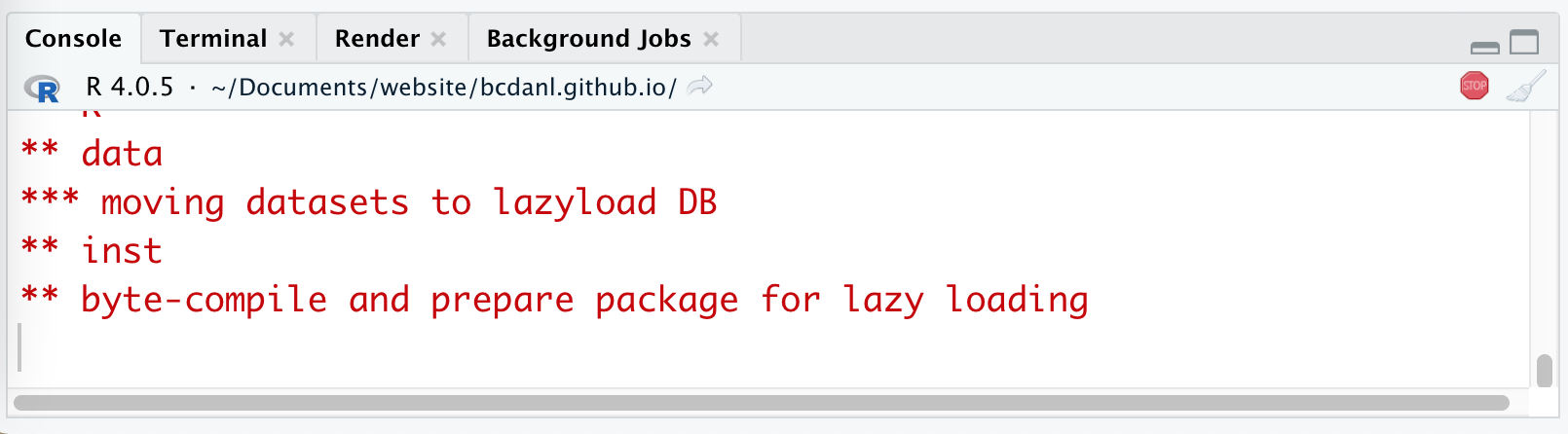
🛑 Workflow: STOP icon

  • When the code is running, RStudio shows the STOP icon ( 🛑 ) at the top right corner in the Console Pane.
    • Do not click it unless if you want to stop running the code.

⚙️ Posit Cloud Options Setting
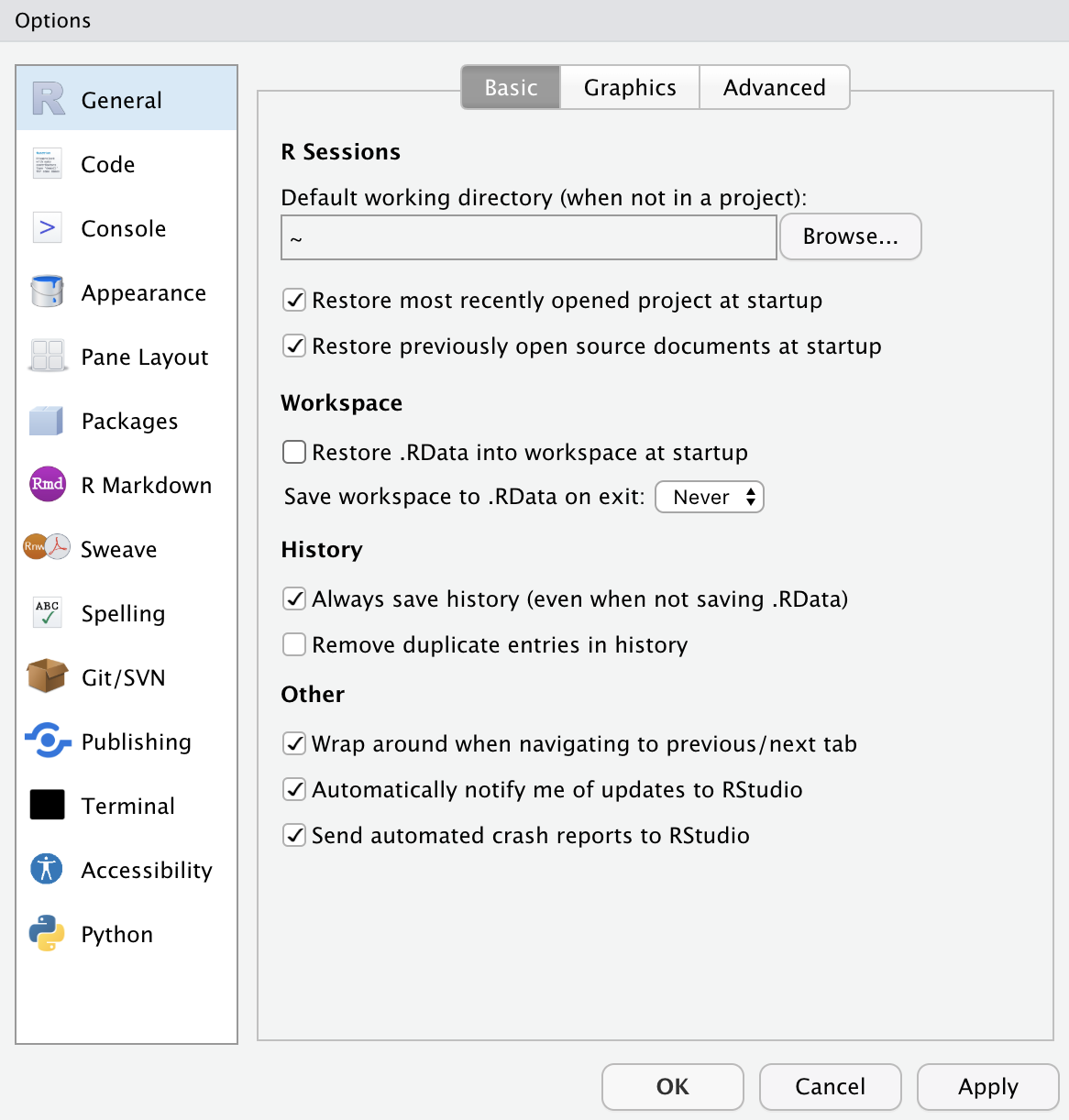
  • This option menu is found by menus as follows:
    • Tools \(>\) Global Options
  • Check the boxes as in the left.
  • Choose the option Never for Save workspace to .RData on exit:

💻 R Fundamentals: Values, Objects, and Data Types

🧱 Values have data types

  • A value is one piece of data, such as a number, text, or TRUE/FALSE.

  • A value’s data type tells R how it can work with that value.

7.5 numeric
"Hello!" character
TRUE logical

🏷️ A variable is a name for a value

a <- 7.5
a
a variable name
<- assigns
7.5 numeric value
  • a is an object name that refers to a value; in this course, we may also call it a variable.

  • <- assigns the value on the right to the name on the left.

  • In R, a value stored under a name is an object.

↔︎️ Keep the assignment arrow together

Assignment x <- 2
Store 2 under the name x.
Comparison x < -3
Ask whether x is less than negative 3.
  • A space between < and - separates them into two operators, changing the meaning.

Note

Keyboard shortcut for <-:
- Windows: Alt + -
- Mac: Option + -

⬅️ R calculates before it assigns

x <- 2
y <- x + 12
y                 # 14
1Find the value stored under x: 2
2Calculate the right side: 2 + 12 = 14
3Store 14 under the name y

Tip

Read x <- 2 as “assign 2 to x” or simply “x gets 2.”

🧩 Common R classes describe kinds of values

Class Example What it represents
logical TRUE A yes-or-no value
numeric 7.5 or 2 R’s usual number class
integer 2L A whole number stored explicitly as an integer
character "Geneseo" Text inside quotation marks
factor factor("Green") A category with a defined set of levels

Note

Use class(object_name) to ask R how an object is classified.

🔤 Character values store text inside quotes

campus <- "Geneseo"
class(campus)       # "character"
  • In R, text is stored as character values.
  • Put text inside matching double quotes (" ") or single quotes (' ').
  • Without quotes, R treats Geneseo as an object name and looks for its value.

🔢 R usually stores numbers as numeric

class(2)       # "numeric"
class(8.8)     # "numeric"
class(2L)      # "integer"
  • numeric is R’s default number class—even when the value looks like a whole number, such as 2.
  • integer is a separate class for explicitly stored whole numbers.

Note

Integer shortcut: add L to a whole number; for example, 2L.

✅ Logical values answer yes-or-no questions

score <- 8.8

score == 8.8       # TRUE
score == 9.9       # FALSE
class(score == 8.8) # "logical"
  • Logical values are TRUE or FALSE—written in capital letters without quotes.
  • == compares two values for equality and returns a logical result.

Tip

<- stores a value; == compares two values.

➡️ A vector stores values of one type

scores <- c(82, 59, 76)
regions <- c("North", "South", "West")
mixed <- c("3", 4, 5)

length(scores)     # 3
class(mixed)       # "character"
  • c(...) combines values in order to create a vector.
  • The vectors have one common type.
    • If types are mixed, R coerces them to a common type; in mixed, every value becomes text.

🗃️ A data frame combines equal-length vectors

🏷️ Factors store categories with defined levels

status <- factor(c("New", "Returning", "New"))
levels(status)     # "New" "Returning"
nlevels(status)    # 2
Values can repeat
NewReturningNew
Levels are distinct
NewReturning
  • A factor represents categorical data using a defined set of labels called levels.

🔄 Conversion changes how R treats a value

price_text <- "4.39"
price <- as.numeric(price_text)

class(price_text)  # "character"
class(price)       # "numeric"
"4.39"character
as.numeric()conversion
4.39numeric
  • Conversion is useful when imported data arrive in the wrong type.

Warning

Conversion can lose information: as.integer(4.39) returns 4. It truncates the decimal; it does not round.

⚠️ A + prompt means R is waiting for more input

> greeting <- "hello
+
  • A missing quote or parenthesis leaves the command unfinished, so the Console shows +.
  • Do not type the +: finish the command, or press Esc to cancel it.
  • Here, + is a continuation prompt—not the addition operator and not an error message.

⚙️ Functions turn inputs into outputs

c(60, 70, 80)input
mean()function
70output
  • A function is reusable code that performs a task.
  • Values supplied to a function are called arguments; the function returns an output.
  • We will use existing functions from base R and packages. We will not write our own functions yet.

🧩 A function call has a name and arguments

round(3.14159)               # 3
round(3.14159, digits = 2)   # 3.14
roundfunction name
3.14159argument: value to round
digits = 2named argument
  • A parameter is an input name in a function’s documentation; an argument is the value supplied in a call.
  • If an argument is omitted, a function may use its documented default value.

🔗 package::name identifies an object’s source

ggplot2::mpg

stringr::str_c("Data", "Analytics", sep = " ")
# "Data Analytics"
  • package::name accesses an exported object—such as a data set or function—without first running library(package).
  • It makes the source explicit and prevents ambiguity when packages use the same name.

Note

For a name conflict, write package1::FN() or package2::FN() to choose the function you intend.

➗ R follows familiar arithmetic rules

5 + 3        # 8
5 / 2        # 2.5
2^3          # 8
(3 + 4)^2    # 49
3 + 4^2      # 19
  • +, -, *, and / perform familiar arithmetic; ^ means “raise to a power.”
  • R follows the standard order of operations: parentheses, exponents, multiplication/division, then addition/subtraction.

Tip

Parentheses make your intended order clear to both R and your reader.

🧮 Built-in functions handle common calculations

Function call Question answered Result
abs(-3) How far is \(-3\) from zero? 3
sqrt(16) What number squared equals 16? 4
round(3.14159, 2) What is this value to two decimal places? 3.14
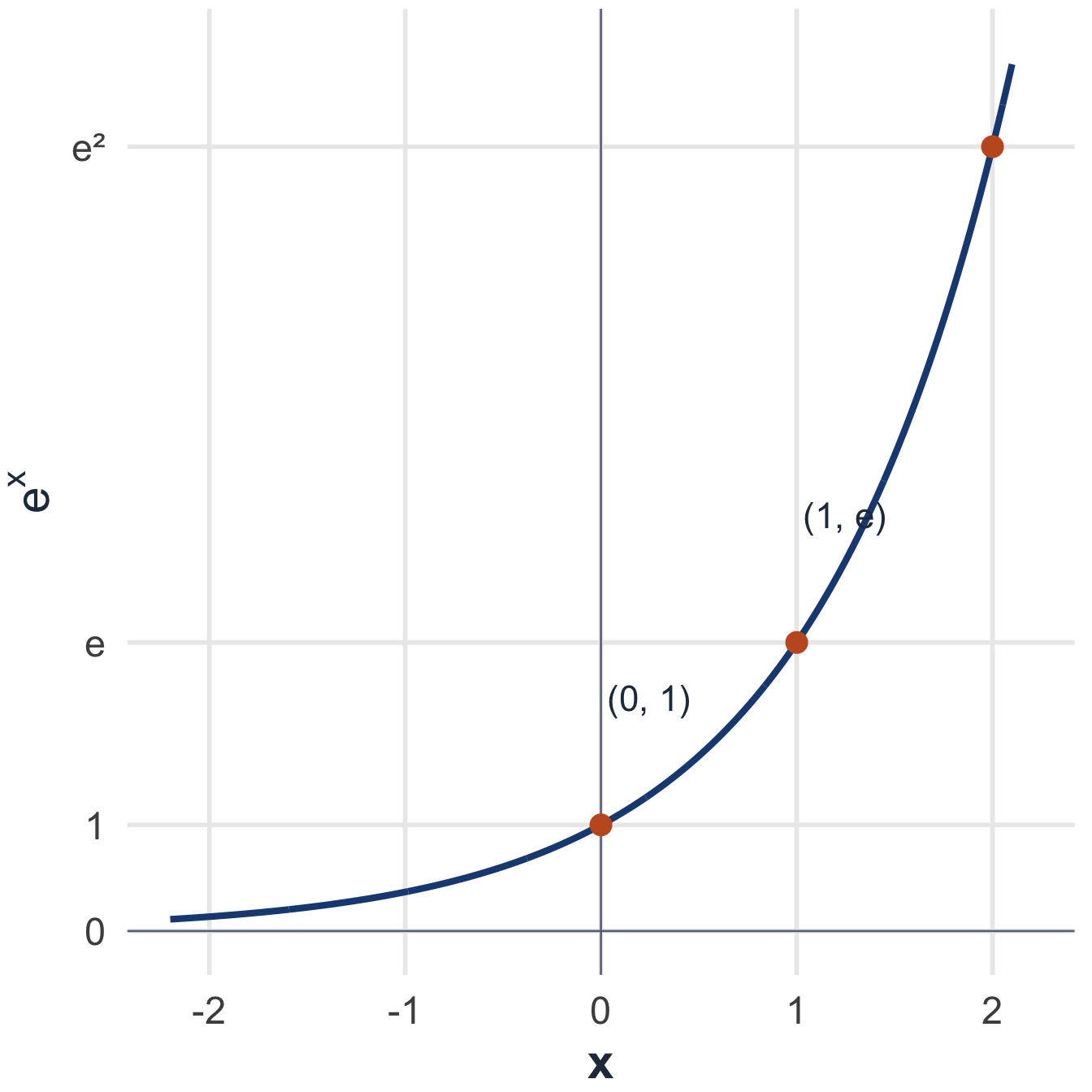
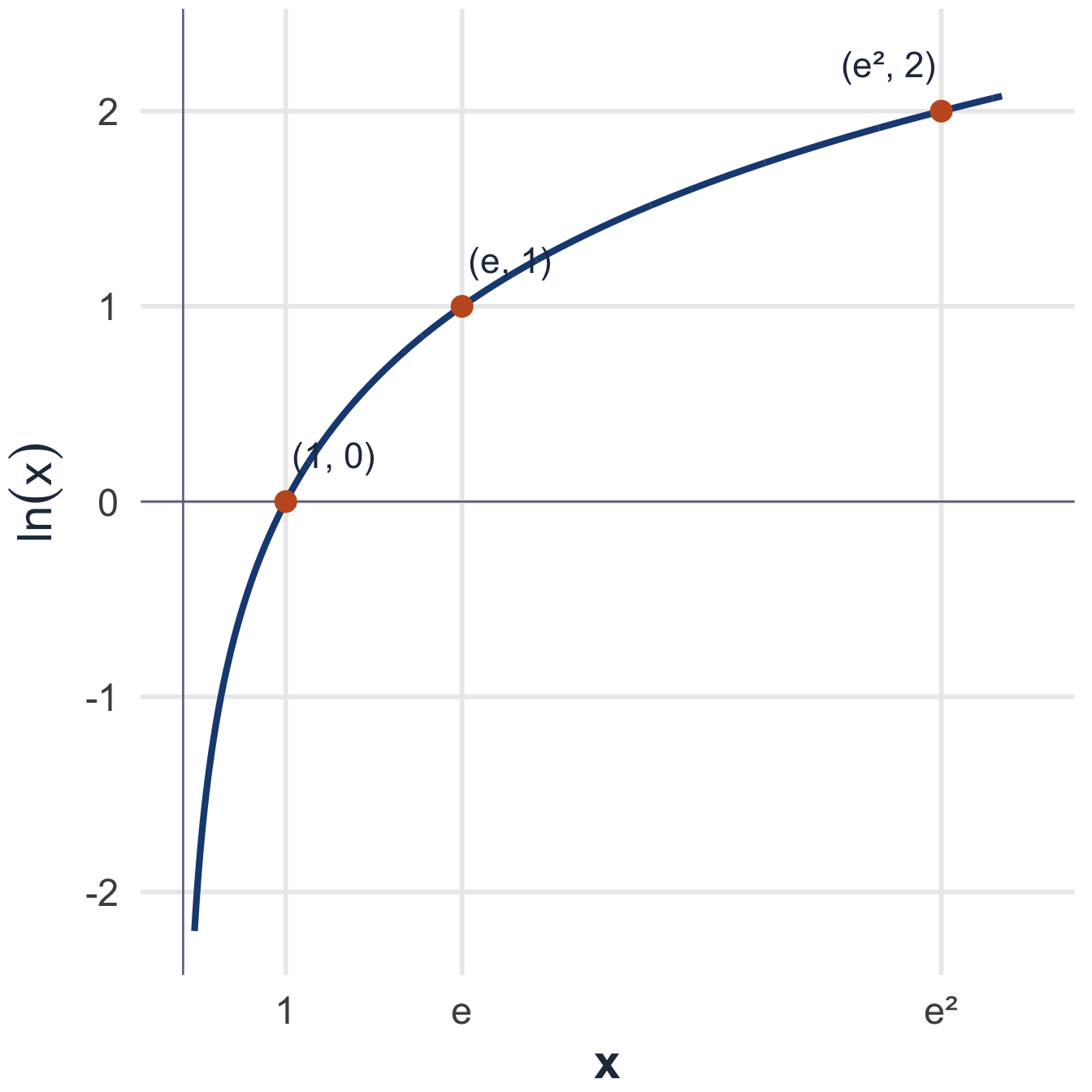
log(exp(3)) What exponent of \(e\) produces \(e^3\)? 3
  • log(x) is the natural logarithm, \(\ln(x)\); exp(x) calculates \(e^x\).

⚡ R can calculate across an entire vector at once

prices <- c(10, 12, 9)

prices * 1.05
# 10.50  12.60  9.45

prices >= 10
# TRUE  TRUE  FALSE
  • Many R operators and functions accept a whole vector and return one result for each element.
  • One expression performs the same calculation or comparison across every value.

Note

For now, combine vectors of the same length when calculating element by element.

🧪 Apply the R fundamentals

Create a vector Inspect its class Use functions on it