Lecture 4
Data Collection II: Web-scrapping Primer; Scrapping Data with selenium
February 13, 2026
🕸 Premier on Web-scrapping
🎣📥 Data Collection via Web-scraping
- Web pages can be a rich data source, but web scraping is powerful.
- Careless scraping can harm websites, violate rules, or compromise privacy.
- Our goal in this module:
- Learn the web fundamentals (client/server, HTTPS, URL, HTML/DOM),
- Understand ethical, responsible scraping
⚖️🤔 “Legal” Is Not the Same as “Ethical”
“If you can see things in your web browser, you can scrape them.”
- Legally (U.S.): publicly available data may sometimes be scraped using automated tools in US (e.g., hiQ Labs vs. LinkedIn Corp.)
- But legality ≠ permission or responsibility:
- Technically: it may be possible.
- Ethically: you still must consider terms or service (ToS), robots.txt, privacy, and data minimization.
- Practically: you can trigger blocks or harm service quality (e.g., overloading servers, ToS/privacy issues).
Warning
Legal ≠ ethical. Even if data is “public,” ToS, privacy expectations, and platform blocks still matter.
🌐 Web Basics: Clients and Servers
💻↔︎️🗄️️ Clients and Servers
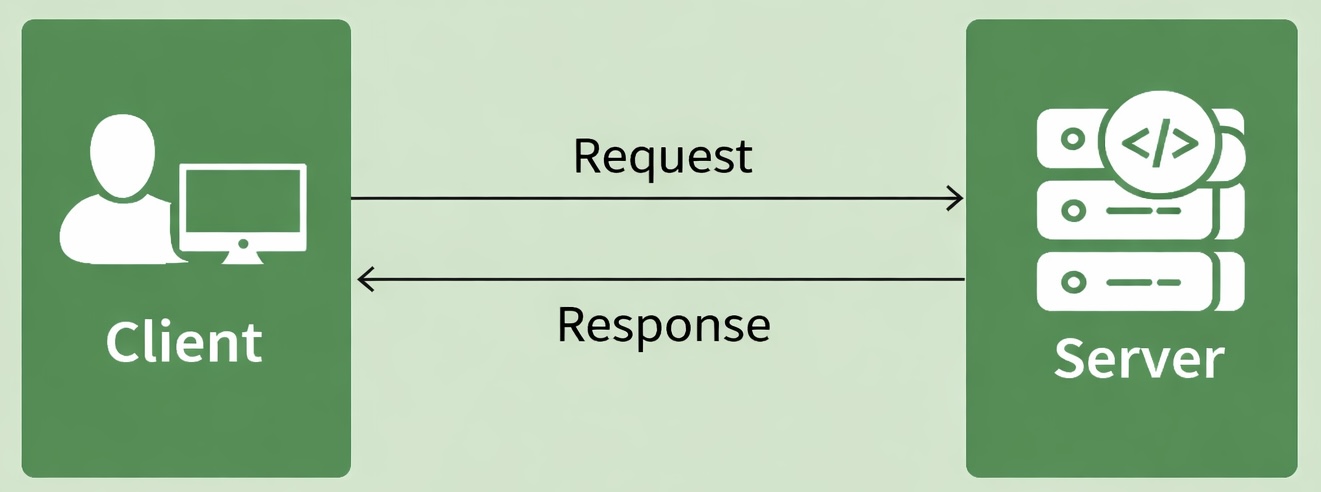
- Devices on the web act as clients and servers.
- Your browser is a client; websites and data live on servers.
- Client: your computer/phone + a browser (Chrome/Firefox/Safari).
- Server: a computer that stores webpages/data and sends them when requested.
- When you load a page, your browser sends a request and the server sends back a response (the page content).
🔒🛡️ Hypertext Transfer Protocol Secure (HTTPS)
- HTTP is how clients and servers communicate.
- HTTPS is encrypted HTTP (safer).
When we type a URL starting with https://:
- Browser finds the server.
- Browser and server establish a secure connection.
- Browser sends a request for content.
- Server responds (e.g., 200 OK) and sends data.
- Browser decrypts and displays the page.
🚦🔢 HTTP Status Codes
🔗📍 URL (what you’re actually requesting)
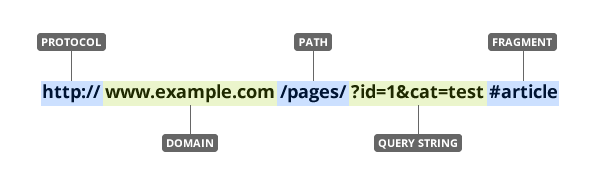
- A URL is a location for a resource on the internet.
- Often includes:
- Protocol (
https) - Domain (
example.com) - Path (
/products) - Query string (
?id=...&cat=...) ← common in data pages - Fragment (
#section) ← in-page reference
- Protocol (
🏗️ HTML Basics
🎯🤏 The Big Idea: Scraping = Selecting from HTML
HTML (HyperText Markup Language) is the markup that defines the structure of a web page (headings, paragraphs, links, tables, etc.).
When you “scrape,” you usually:
- Load a page
- Examine the HTML
- Extract specific elements (title, price, table, links, etc.)
If you don’t understand HTML, you can’t reliably target the right data.
Selenium is not “magic”—it automates a browser, but you still need to:
- Inspect the HTML to identify and target the right elements
🖼️🆚📝 HTML in Browser vs. HTML Source Code
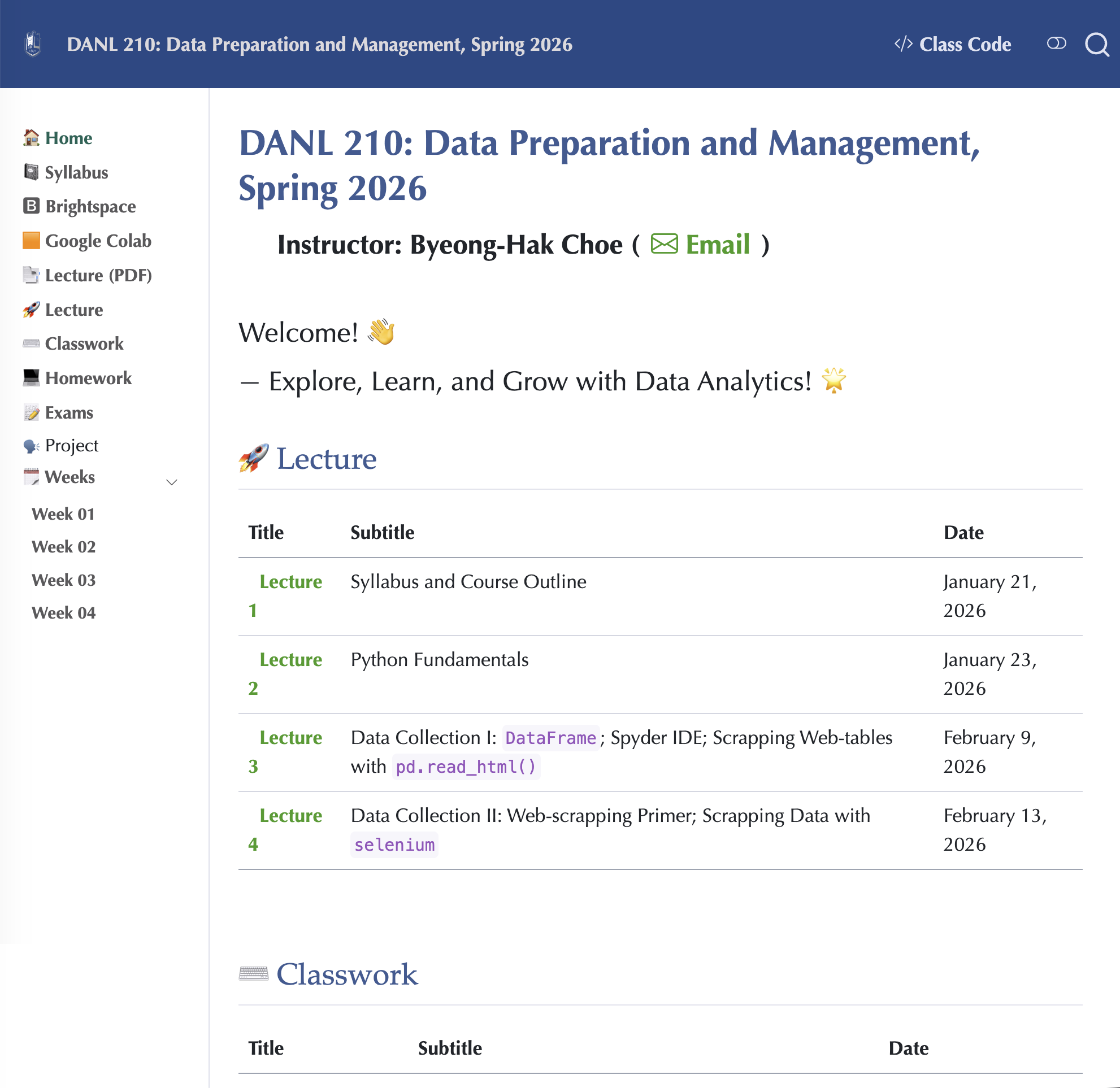
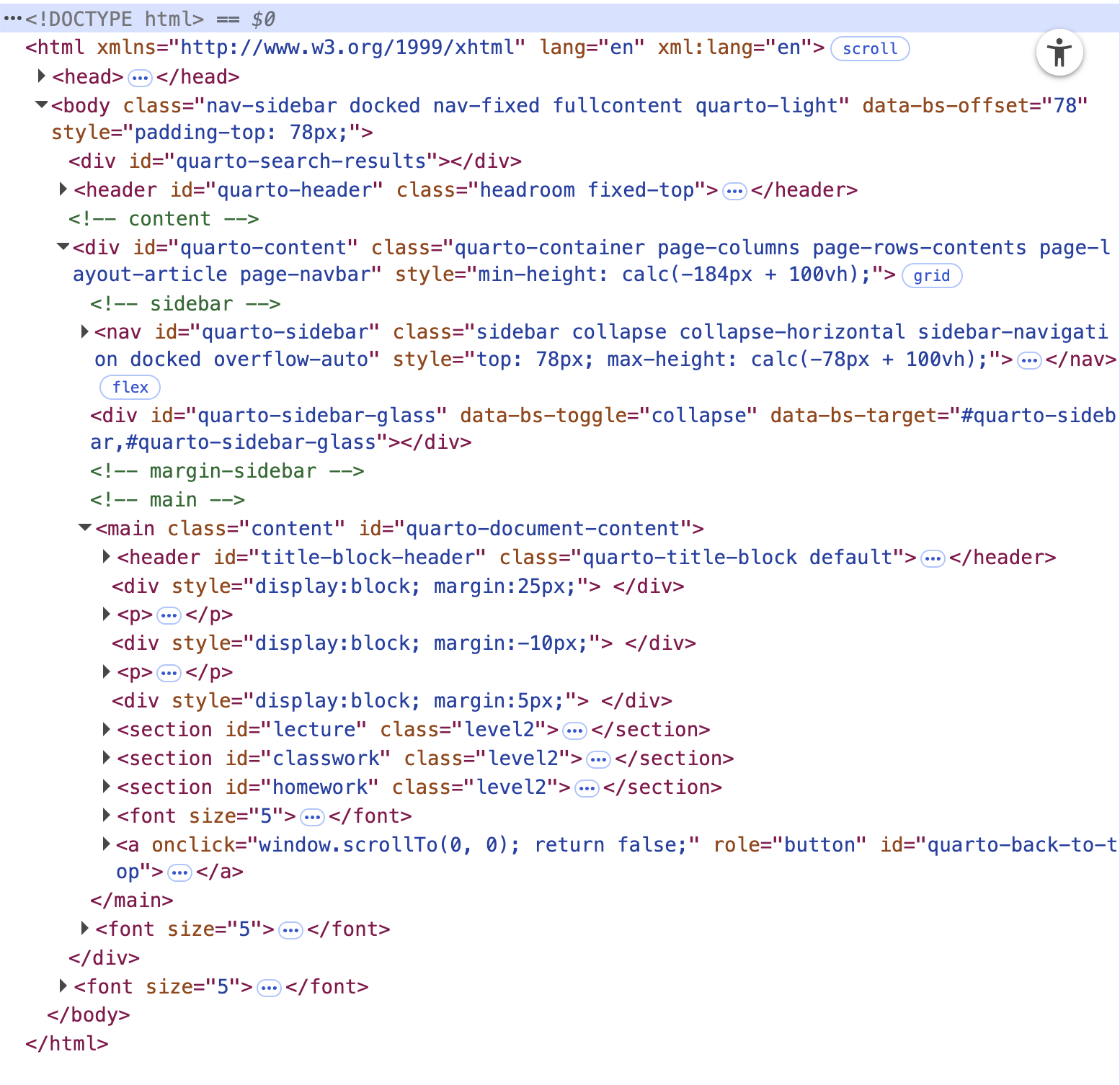
🌳📑 Document Object Model (DOM)
The Browser’s “Tree” of the Page
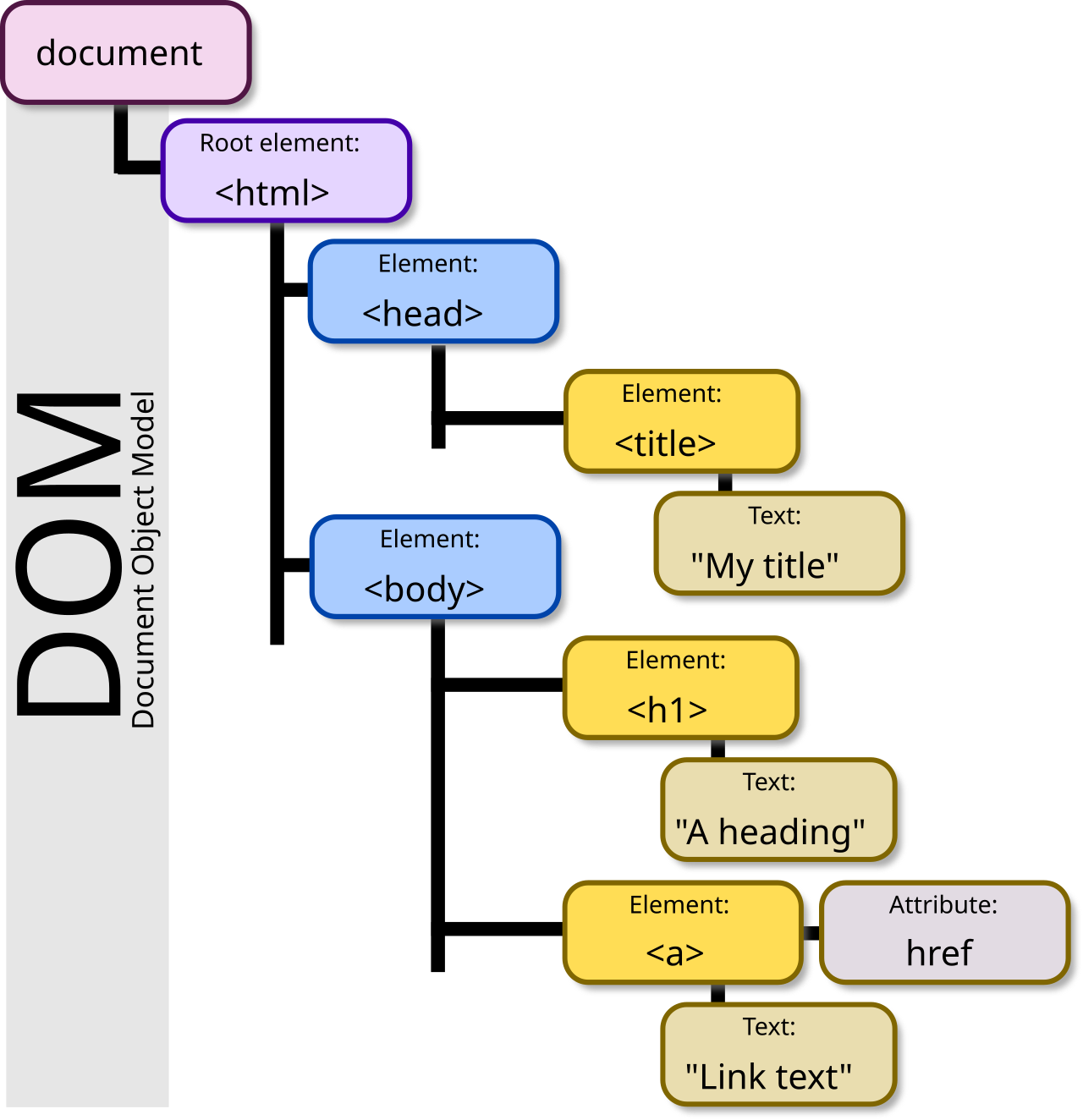
- The browser represents HTML as the DOM (Document Object Model).
- Selenium interacts with the DOM.
- Scraping often becomes:
- “Find the node”
- “Extract its text/attribute”
🔍🕵️ Inspecting HTML (your #1 web-scrapping skill)
- Open a Chrome browser.
- Open DevTools:
- F12, or right-click → Inspect
- Use it to find:
- Element text
id/class- Attributes (like
href,data-*)
🧱🧩 HTML Elements (what you actually scrape)
- Most HTML is built from elements like:
- Common ones you’ll extract:
- Headings:
<h1> ... </h1> - Text blocks:
<p> ... </p> - Links:
<a href="..."> ... </a> - Tables:
<table> ... </table> - Containers:
<div> ... </div> - Inline text:
<span> ... </span>
- Headings:
🔗🖼️ HTML Body: Links and Images
🧾 HTML Tables
📋 Lists you’ll see in the wild
🎯📦 Containers you’ll target a lot: <div> and <span>
<div> – block-level container
Seoul
Seoul is the capital city of South Korea…
- Often used to group major page sections.
<span> – inline container
My mother has blue eyes…
- Often used inside text.
⚙️🕸️ Web-scrapping with Python selenium
❓ What is Selenium?

- Selenium is a tool that lets Python control a real web browser (like Chrome or Firefox) automatically.
- It is used for:
- Web automation (click buttons, fill forms, scroll pages)
- Web scraping when a website is dynamic (JavaScript loads content after the page opens)
- Selenium works by interacting with the page’s DOM (Document Object Model):
- It finds elements in HTML
- Then reads text/attributes or performs actions (click, type, scroll)
WebDriver
WebDriver is an wire protocol that defines a language-neutral interface for controlling the behavior of web browsers.
The purpose of WebDriver is to control the behavior of web browsers programmatically, allowing automated interactions such as:
- Extracting webpage content
- Opening a webpage
- Clicking buttons
- Filling out forms
- Running automated tests on web applications
Selenium WebDriver refers to both the language bindings and the implementations of browser-controlling code.
Driver
- Each browser requires a specific WebDriver implementation, called a driver.
- Web browsers (e.g., Chrome, Firefox, Edge) do not natively understand Selenium WebDriver commands.
- To bridge this gap, each browser has its own WebDriver implementation, known as a driver.
- The driver handles communication between Selenium WebDriver and the browser.
- This driver acts as a middleman between Selenium WebDriver and the actual browser.
- Different browsers have specific drivers:
- ChromeDriver for Chrome
- GeckoDriver for Firefox
🔁 WebDriver-Browser Interaction
- A simplified diagram of how WebDriver interacts with browser might look like this:
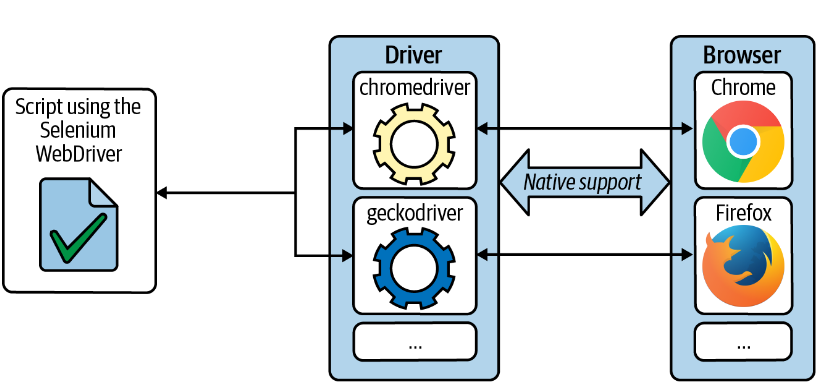
- WebDriver interacts with the browser via the driver in a two-way communication process:
- Sends commands (e.g., open a page, click a button) to the browser.
- Receives responses from the browser.
🔧 Setting up
- Install the Chrome or FireFox web-browser if you do not have either of them.
- I will use the Chrome.
- Install Selenium using
pip:- On the Spyder Console, run the following:
pip install selenium
- Selenium with Python is a well-documented reference.
🧩 Setting up - webdriver.Chrome()
- To begin with, we import (1)
webdriverfromseleniumand (2) theByandOptionsclasses.webdriver.Chrome()opens the Chrome browser that is being controlled by automated test software,selenium.
import pandas as pd
import numpy as np
import os, time, random
from io import StringIO

# Import the necessary modules from the Selenium library
from selenium import webdriver  # Main module to control the browser
from selenium.webdriver.common.by import By  # Helps locate elements on the webpage
from selenium.webdriver.chrome.options import Options  # Allows setting browser options
from selenium.webdriver.support.ui import WebDriverWait
from selenium.webdriver.support import expected_conditions as EC
from selenium.common.exceptions import NoSuchElementException
from selenium.common.exceptions import TimeoutException
from selenium.common.exceptions import StaleElementReferenceException

# Set the working directory path
wd_path = 'ABSOLUTE_PATHNAME_OF_YOUR_WORKING_DIRECTORY' # e.g., '/Users/bchoe/Documents/DANL-210'
os.chdir(wd_path)  # Change the current working directory to wd_path
os.getcwd()  # Retrieve and return the current working directory

# Create an instance of Chrome options
options = Options()

# Initialize the Chrome WebDriver with the specified options
driver = webdriver.Chrome(options=options)
🌐 get() Method in WebDriver
get(url)fromwebdriveropens the specified URL in a web browser.- When using
webdriverin Google Chrome, you may see the message:- “Chrome is being controlled by automated test software.”
close()terminates the current browser window.quit()completely exits thewebdriversession, closing a browser window.
🔎 Inspecting a Web Element with find_element()
- Once the Google Chrome window loads with the provided URL, we need to find specific elements to interact with.
- The easiest way to identify elements is by using Developer Tools to inspect the webpage structure.
- To inspect an element:
- Right-click anywhere on the webpage.
- Select the Inspect option from the pop-up menu.
- In the
Elementspanel, hover over the DOM structure to locate the desired element.
🔍 Inspecting a Web Element with find_element()
- When inspecting an element, look for:
- HTML tag (e.g.,
<input>,<button>,<div>) used for the element. - Attributes (e.g.,
id,class,name) that define the element. - Attribute values that help uniquely identify the element.
- Page structure to understand how elements are nested within each other.
- HTML tag (e.g.,
📍 Locating Web Elements by find_element() & find_elements()
📍 Locating Web Elements by find_element()
- There are various strategies to locate elements in a page.
find_element(By.ID, "id")
find_element(By.CLASS_NAME, "class name")
find_element(By.NAME, "name")
find_element(By.CSS_SELECTOR, "css selector")
find_element(By.TAG_NAME, "tag name")
find_element(By.LINK_TEXT, "link text")
find_element(By.PARTIAL_LINK_TEXT, "partial link text")
find_element(By.XPATH, "xpath")
Selenium provides the
find_element()method to locate elements in a page.To find multiple elements (these methods will return a list):
find_elements()
find_element(By.ID, "")
find_element(By.ID, "")&find_elements(By.ID, ""):- Return element(s) that match a given ID attribute value.
- Example HTML code where an element has an ID attribute
form1:
find_element(By.CLASS_NAME, "")
find_element(By.CLASS_NAME, "")&find_elements(By.CLASS_NAME, ""):- Return element(s) matching a specific class attribute.
- Example HTML code with a
homebtnclass:
find_element(By.NAME, "")
find_element(By.CSS_SELECTOR, "")
find_element(By.CSS_SELECTOR, "")&find_elements(By.CSS_SELECTOR, ""):- Locate element(s) using a CSS selector.
- Inspect the webpage using browser Developer Tools.
- Locate the desired element in the Elements panel.
- Right-click and select Copy selector
- Let’s find out CSS selector for the Home button.
find_element(By.TAG_NAME, "")
find_element(By.LINK_TEXT, "")
find_element(By.PARTIAL_LINK_TEXT, "")
find_element(By.XPATH, "")
find_element(By.XPATH, "…")andfind_elements(By.XPATH, "…"):- Find element(s) that match the given XPath expression.
find_element(...)returns one matching element (the first match).find_elements(...)returns a list of all matching elements.
- XPath is a query language for locating nodes in a tree structure.
- Web pages are written in HTML, and the browser represents them as a DOM tree, which XPath can query.
- Selenium supports XPath in all major browsers.
- XPath is useful when id/name/class selectors are missing, duplicated, or unstable.
- It’s powerful for navigating nested or complex HTML structures.
Basic XPath Pattern
//→ search anywhere in the documenttag_name→ HTML tag name (input,div,span,table, etc.)@attribute→ attribute name (id,class,aria-label,role,data-*, etc.)'value'→ the attribute’s value (quoted)
XPath vs. Full XPath
When you right-click an element in Chrome DevTools → Copy, you often see:
- Copy XPath (often a relative-style XPath)
- Typically starts with
//... - Tries to find the element using attributes and structure
- Usually more flexible if the page layout changes
- Typically starts with
- Copy Full XPath
- Typically starts with
/html/body/... - A complete path from the root of the document tree
- Often fragile: if the page structure changes, it can break easily
- Typically starts with
In practice: prefer XPath (the shorter one) over Full XPath when possible.
Example: Finding the 2nd Table with XPath
- Suppose we want the second
<table>on a page, but the tables have no uniqueidorclass. - Using
find_element(By.TAG_NAME, "table")is too vague because it returns only the first table. - XPath can target the second one:
🛠️ Extracting XPath from Developer Tools
- Inspect the webpage using browser Developer Tools.
- Locate the desired element in the Elements panel.
- Right-click and select Copy XPath.
- Example extracted XPath:
🎯 Example: Finding an Element Using XPath
- Locate “Tiger Nixon” in the second table:
When to Use XPath
- Use XPath when:
- The element lacks a unique ID or class.
- Other locator methods (
By.ID,By.CLASS_NAME, etc.) don’t work.
- Limitations:
- XPath can be less efficient than ID-based locators.
- Page structure changes may break XPath-based automation.
- For our tasks, however, XPath remains a reliable and effective method!
Web-scrapping with Python selenium
Let’s do Classwork 4!
🧾 Retrieving Attribute Values with get_attribute()
HTML Example
get_attribute()extracts an element’s attribute value.- Useful for retrieving hidden properties not visible on the page.
🚫🔎 NoSuchElementException and try-except blocks
url = "https://qavbox.github.io/demo/webtable/"
driver.get(url)

try:
    href = driver.find_element(By.LINK_TEXT, "Selen").get_attribute("href")
except:
href = ""- When a web element is not found, it throws the
NoSuchElementException.try-exceptcan be used to avoid the termination of the selenium code.
- This solution is to address the inconsistency in the DOM among the seemingly same pages.
🤝🎲 Polite Scraping: Randomized Pauses with time.sleep(random.uniform())
import time, random

# Example: polite delay between actions/pages
time.sleep(random.uniform(0.5, 1.5)) # small jitter (adjust as needed)- After each page load, click, or data extraction, add a small randomized pause.
- This is not about “waiting for the DOM”—it is about respecting servers and reducing bursty traffic.
Web-scrapping with Python selenium
Let’s do:
📋🔎 Selenium with pd.read_html() for Table Scrapping
Selenium with pd.read_html() for Table Scrapping
Yahoo! Finance has probably renewed its database system, so that
yfinancedoes not work now.Yahoo! Finance uses web table to display historical data about a company’s stock.
Let’s use Selenium with
pd.read_html()to collect stock price data!
💹📈 Selenium with pd.read_html() for Yahoo! Finance Data
# Load content page
url = 'https://finance.yahoo.com/quote/MSFT/history/?p=MSFT&period1=1672531200&period2=1772323200'
driver.get(url)
time.sleep(random.uniform(4, 8)) # wait for table to loadperiod1andperiod2values for Yahoo Finance URLs uses Unix timestamps (number of seconds since January 1, 1970),- 1672531200 → 2023-01-01
- 1772323200 → 2026-03-01
🧾🔍 get_attribute("outerHTML")
# Extract the <table> HTML element
table_html = driver.find_element(By.TAG_NAME, 'table').get_attribute("outerHTML")

# Parse the HTML table into a pandas DataFrame
df = pd.read_html(StringIO(table_html))[0]StringIOturns that string into a file-like object, which is whatpd.read_html()expects moving forward..get_attribute("outerHTML"): gets the entire HTML from the WebElement.
Web-scrapping with Python selenium
Let’s do Classwork 7!
⏳ WebDriverWait
🆚⏱️ Two different “waits”
- Pause to respect servers (politeness):
- Use
time.sleep(random.uniform(a, b))as a small human-like delay between actions/pages. - This helps avoid hammering a website with rapid-fire requests.
- Use
time.sleep(random.uniform())for politeness (respect servers).
- Use
- Wait for the page to be ready (robustness):
- Use
WebDriverWait()+ a condition (presence/clickable). - This prevents flaky failures on slow networks or busy sites.
- Use
WebDriverWait()for robustness (wait for conditions).
- Use
Best practice: Use both—WebDriverWait for robustness, and small randomized sleeps for politeness.
⚠️😴 Why time.sleep() Alone is Not Robust
import time

url = "https://qavbox.github.io/demo/delay/"
driver.get(url)

xpath_click_me = '//*[@id="one"]/input'
driver.find_element(By.XPATH, xpath_click_me).click()

time.sleep(2)  # blind wait: always 2 seconds

xpath_text = '//*[@id="two"]'
element = driver.find_element(By.XPATH, xpath_text)
element.texttime.sleep()is a blind wait:- If content loads faster, you waste time.
- If content loads slower, your code may crash (element not found).
- For reliable automation/scraping, use condition-based waits.
✅👀 Robust Wait for Presence (exists in DOM) with WebDriverWait() + expected_conditions
wait = WebDriverWait(driver, 10)

driver.get(url)
time.sleep(1)
driver.find_element(By.XPATH, xpath_click_me).click()

element2 = wait.until(
    EC.presence_of_element_located(
        (By.XPATH, xpath_text)
        )
)

element2.text- Good when the element is added to the DOM but might not be visible yet.
✅🖱️ Robust Wait for Clickable (Visible + Enabled) with WebDriverWait() + expected_conditions
- Best when you want to click reliably.
🤝 A Common Pattern (Robust + Polite)
Web-scrapping with Python selenium
Let’s do Classwork 9!