Lecture 7

Advanced ggplot Chart Types

Byeong-Hak Choe

SUNY Geneseo

March 30, 2026

🌟 Beyond the usual bar chart and scatterplot

  • ggplot2 can build many chart types by layering familiar geoms and statistics.
  • The key question is not just how to draw a chart, but when that chart is useful.
  • Today we focus on chart types that are especially helpful for comparisons, flows, compositions, and text.

πŸ“¦ Load the data

eia <- read_csv("https://bcdanl.github.io/data/danl-310-s26-midterm-q4.csv") 

titanic <- read_csv("https://bcdanl.github.io/data/titanic_cleaned.csv") |>
  mutate(survived = if_else(survived, "Survived", "Did not\n survive"))

org <- socviz::organdata 

netflix <- read_csv("https://bcdanl.github.io/data/netflix_cleaned.csv")

πŸ› οΈ Install the packages

install.packages(c(
  "ggalluvial", "GGally", "ggcorrplot", "tidytext", "ggwordcloud"
))

remotes::install_github("ricardo-bion/ggradar")
remotes::install_github("https://github.com/davidsjoberg/ggstream")

library(ggstream)
library(ggalluvial)
library(ggradar)
library(GGally)
library(ggcorrplot)
library(tidytext)
library(ggwordcloud)

πŸ‹οΈ Dumbbell charts

🎯 What is a dumbbell chart?

  • A dumbbell chart compares two values for the same group.
  • It emphasizes the distance between endpoints.
  • It is often clearer than a grouped bar chart when the goal is to compare change.

🌍 Prepare gapminder for a dumbbell chart

gap_dumbbell <- gapminder |>
  filter(year %in% c(1952, 2007), continent == "Asia") |>
  select(country, year, lifeExp) |>
  pivot_wider(names_from = year,
              values_from = lifeExp,
              names_prefix = "year_") |>
  mutate(change = year_2007 - year_1952) |>
  slice_max(change, n = 12) |>
  arrange(change) |>
  mutate(country = fct_inorder(country))
  • Each country has one value in 1952 and one in 2007.
  • We keep 12 countries with the largest increase in life expectancy.

πŸ‹οΈ Dumbbell chart: life expectancy change

ggplot(gap_dumbbell, aes(y = country)) +
  geom_segment(aes(x = year_1952,
                   xend = year_2007,
                   yend = country),
               linewidth = 2,
               color = "gray70") +
  geom_point(aes(x = year_1952), 
             size = 4, color = "steelblue") +
  geom_point(aes(x = year_2007), 
             size = 4, color = "darkorange") +
  labs(
    x = "Life expectancy",
    y = NULL,
    title = "Life expectancy in 1952 vs 2007",
    subtitle = "Selected Asian countries with the largest gains",
    caption = "Data: gapminder"
  )
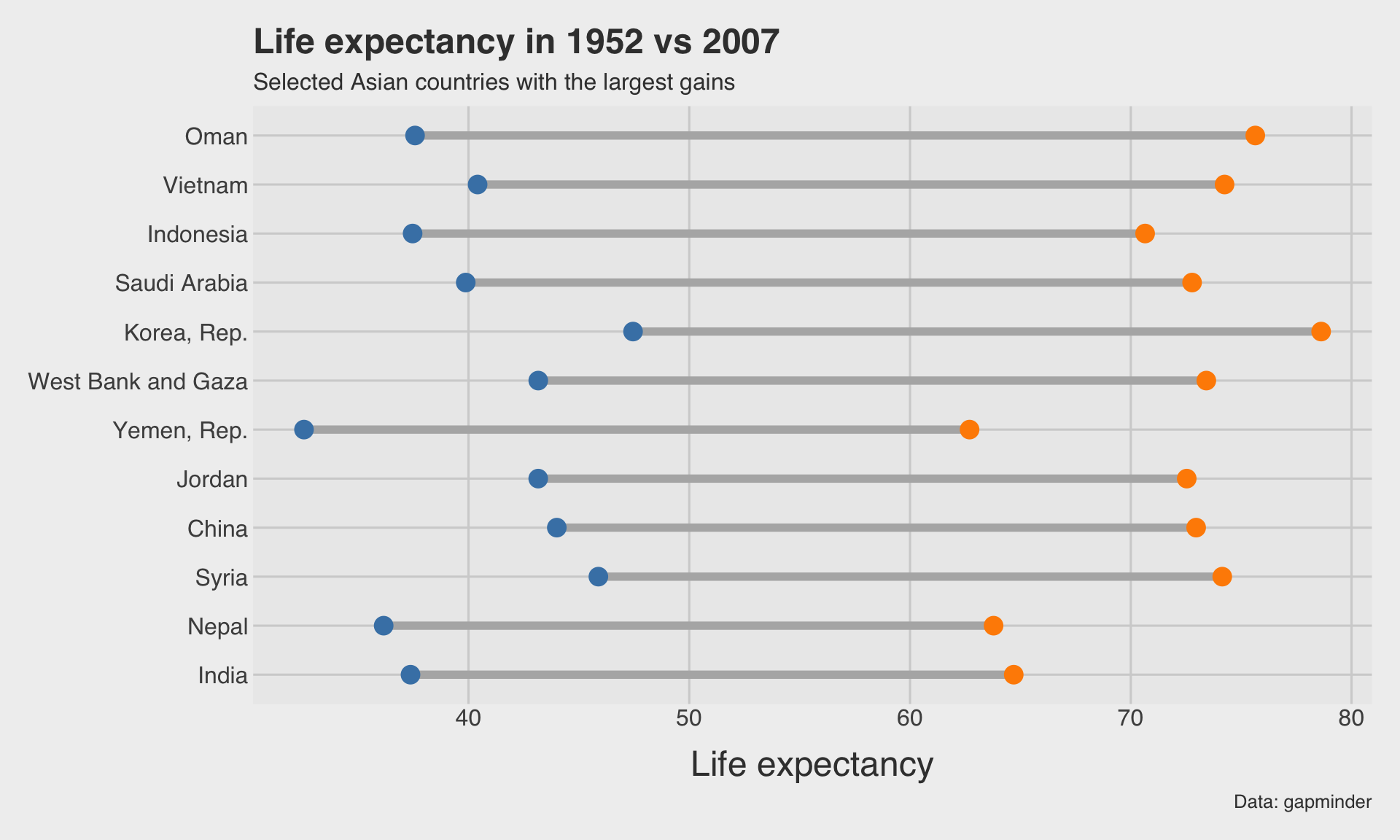
  • The segment shows the gap between the two values.
  • The two endpoint colors mark the start and end year.

🧠 When dumbbell charts work well

  • Use them when each group has exactly two values you want to compare.
  • They are especially good for before/after, men/women, baseline/follow-up, or first/last year comparisons.
  • They become less useful when there are many groups or more than two time points.

πŸ“ˆ Slope graphs

πŸ”— What is a slope graph?

  • A slope graph also compares two values per group.
  • But the main emphasis is the direction and steepness of change.
  • It is especially useful when the left side and right side represent two different time points.

🌍 Prepare data for a slope graph

gap_slope <- gapminder |>
  filter(year %in% c(1952, 2007), 
         country %in% c("United States", "Canada", "Japan") | 
           str_detect(country, "Korea")) |>
  select(country, year, gdpPercap) |>
  mutate(year = factor(year)) |>
  group_by(country) |>
  summarize(
    `1952` = gdpPercap[year == "1952"],
    `2007` = gdpPercap[year == "2007"]) |>
  ungroup() |> 
  mutate(change = `2007` - `1952`) |>
  slice_max(change, n = 12)

gap_slope_long <- gap_slope |>
  pivot_longer(cols = c(`1952`, `2007`),
               names_to = "year", values_to = "gdpPercap")
  • Here we compare GDP per capita in 1952 and 2007.
  • We again keep a smaller number of countries so the figure stays readable.

πŸ“ˆ Slope graph: GDP per capita change

ggplot(data = gap_slope_long,
       aes(x = year, y = gdpPercap, group = country, color = country)) +
  geom_line(linewidth = 1.2, show.legend = FALSE) +
  geom_point(size = 3, show.legend = FALSE) +
  geom_text(
    data = gap_slope_long |> filter(year == "1952"),
    aes(label = country),
    hjust = 1,
    size = 3.5,
    show.legend = FALSE
  ) +
  geom_text(
    data = gap_slope_long |> filter(year == "2007"),
    aes(label = country),
    hjust = -0.2,
    size = 3.5,
    show.legend = FALSE
  ) +
  scale_y_continuous(labels = dollar_format()) +
  coord_cartesian(clip = "off") +
  labs(
    x = NULL,
    y = "GDP per capita",
    title = "Slope graph: GDP per capita in 1952 vs 2007",
    subtitle = "Selected European countries",
    caption = "Data: gapminder"
  ) +
  theme(plot.margin = margin(10, 60, 10, 60))
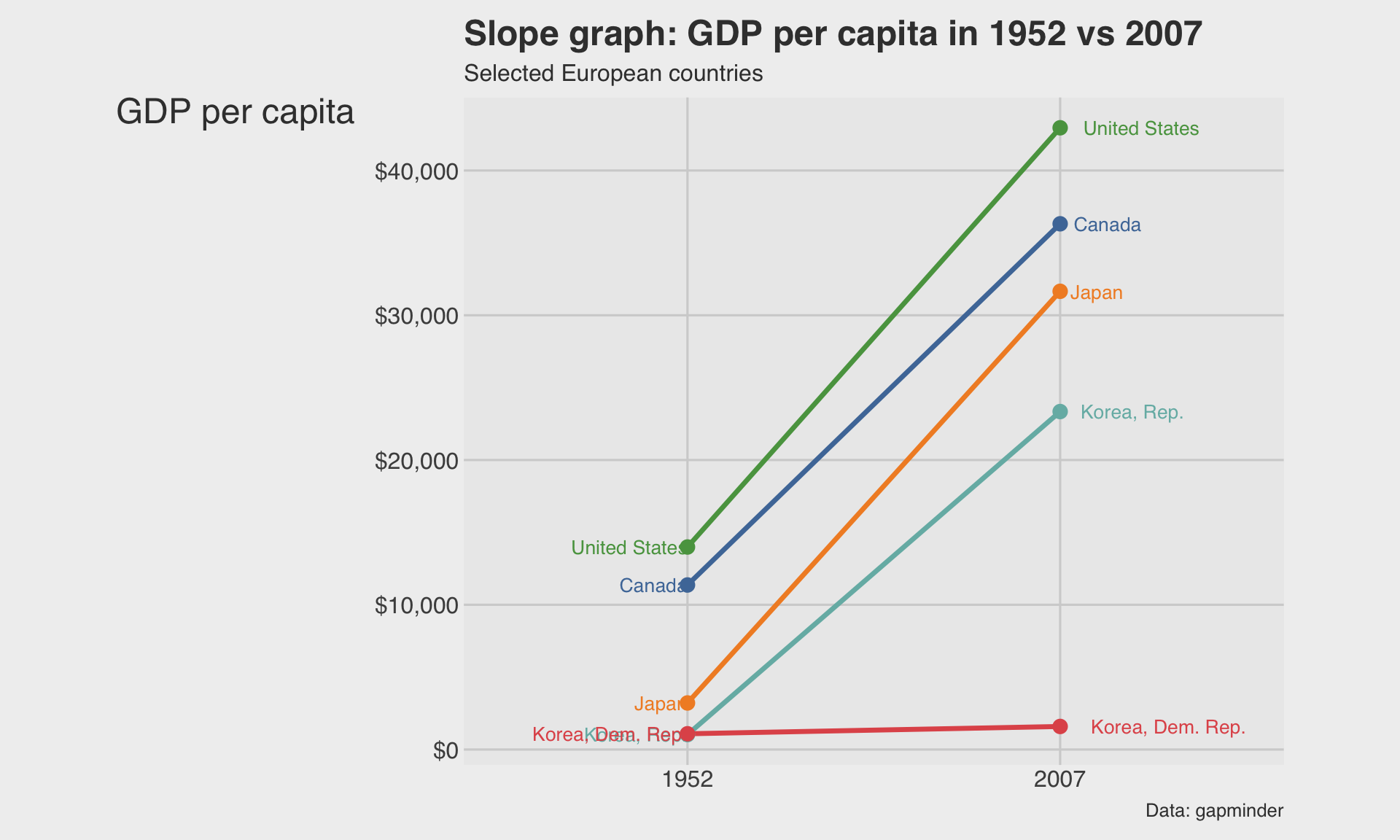
  • Labeling both ends helps the audience compare positions directly.

🧠 When slope graphs work well

  • Use them when the change itself is the message.
  • Slope graphs are often more intuitive than dumbbell charts for time comparisons.
  • They can get cluttered quickly, so limit the number of groups.

πŸ” Area charts

🧱 What does an area chart show?

  • An area chart is useful for showing how values evolve across time.
  • A stacked area chart emphasizes how the whole is composed of parts.
  • It works best when time is ordered and the number of groups is modest.

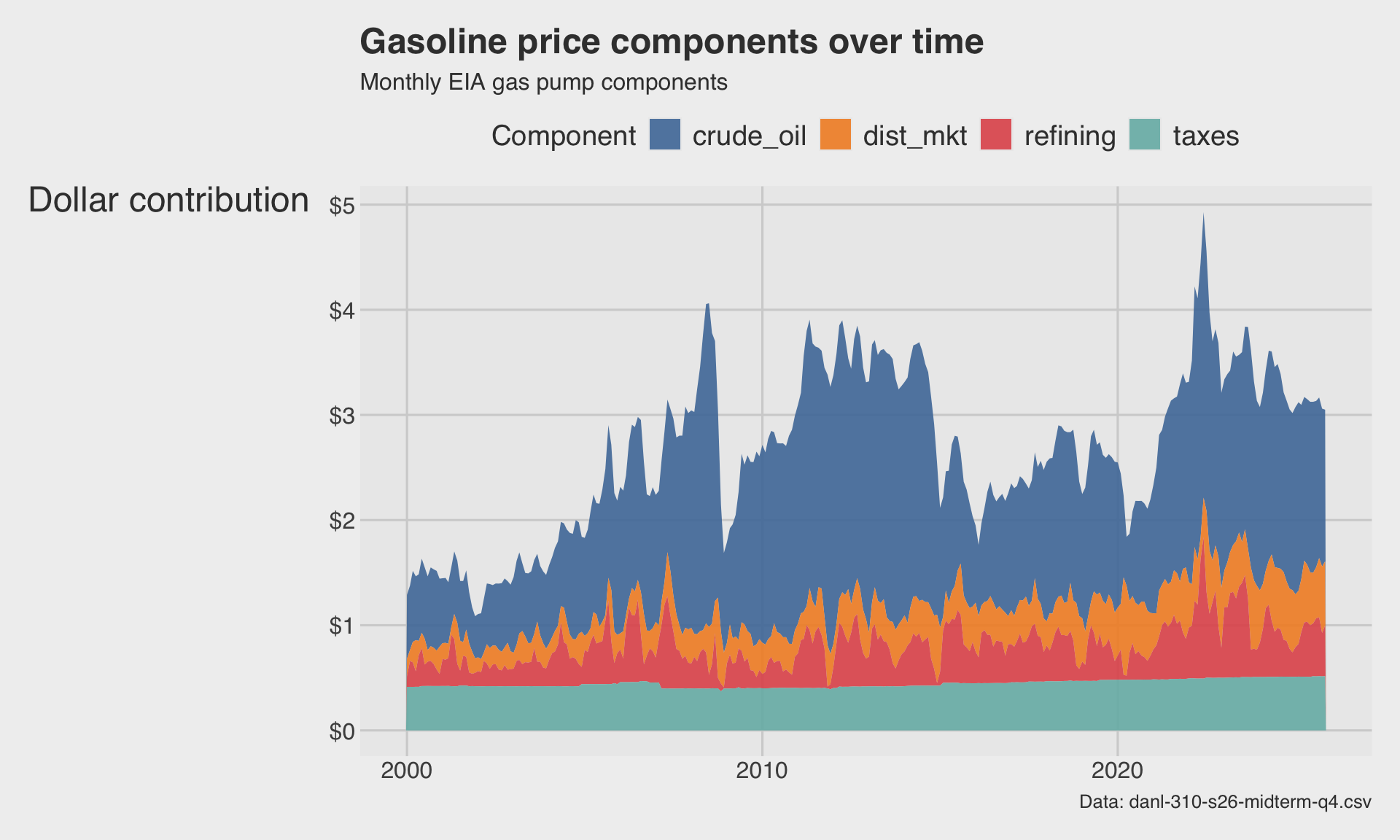
🌊 Stacked area chart: gasoline price components

ggplot(eia,
       aes(x = mon_yr,
           y = retail_price_decomposed,
           fill = component)) +
  geom_area(alpha = 0.9) +
  scale_y_continuous(labels = dollar_format()) +
  labs(
    x = NULL,
    y = "Dollar contribution",
    fill = "Component",
    title = "Gasoline price components over time",
    subtitle = "Monthly EIA gas pump components",
    caption = "Data: danl-310-s26-midterm-q4.csv"
  )

  • The total height is the retail gasoline price.
  • Each colored band shows one component’s contribution to that total.

⚠️ Area chart caution

  • The bottom group is easiest to compare over time.
  • Middle layers are harder to judge because they do not share a common baseline.
  • Use stacked area charts mainly for overall composition, not precise comparisons among middle categories.

🌊 Stream graphs

πŸŒ€ What is a stream graph?

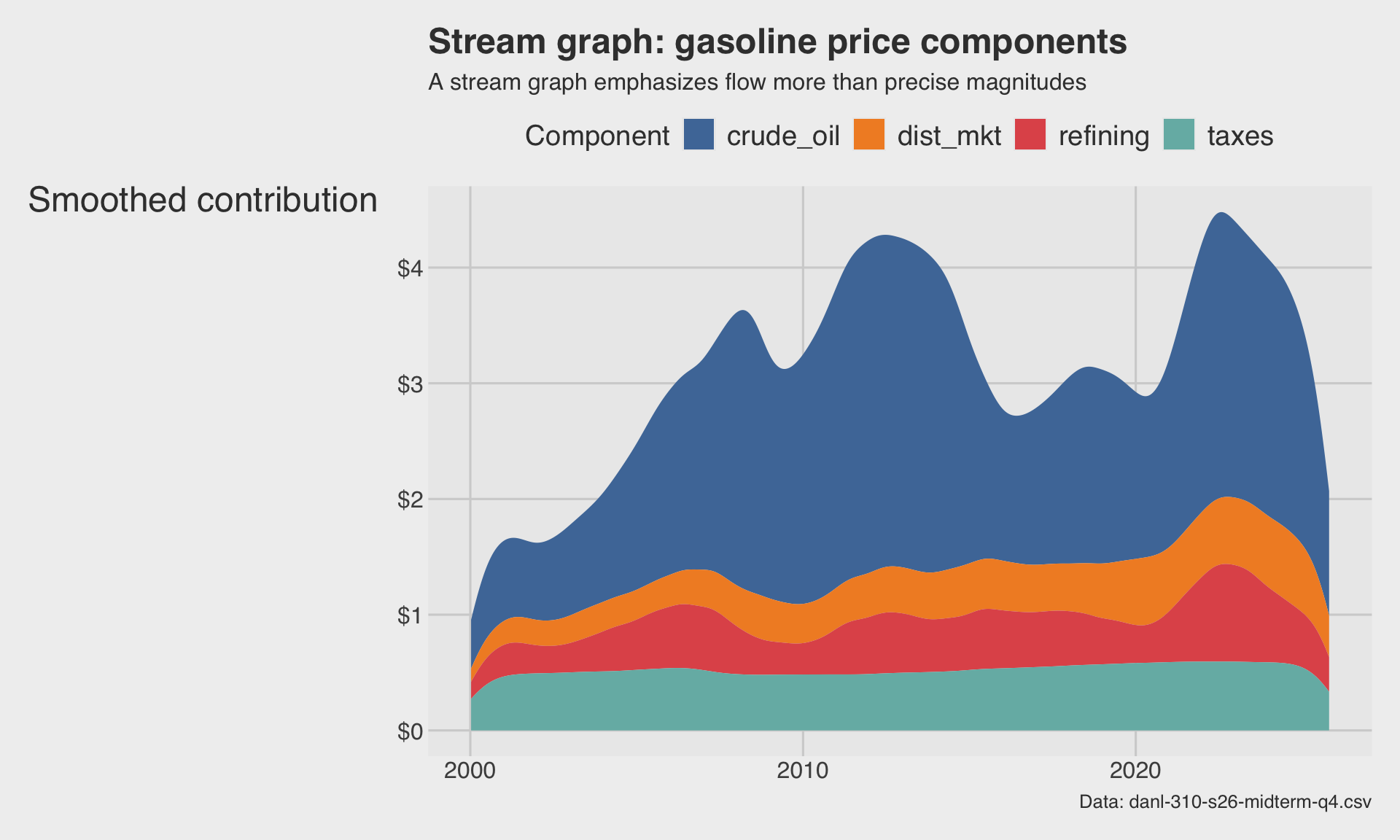
  • A stream graph is a stylized version of a stacked area chart.
  • It centers layers around a midpoint, producing a flowing shape.
  • It is attractive and can highlight broad trends, but exact reading is harder.

🌊 Stream graph: gasoline price components

ggplot(eia,
       aes(x = mon_yr,
           y = retail_price_decomposed,
           fill = component)) +
  ggstream::geom_stream(type = "ridge", bw = 0.6, extra_span = 0.1) +
  scale_y_continuous(labels = dollar_format()) +
  labs(
    x = NULL,
    y = "Smoothed contribution",
    fill = "Component",
    title = "Stream graph: gasoline price components",
    subtitle = "A stream graph emphasizes flow more than precise magnitudes",
    caption = "Data: danl-310-s26-midterm-q4.csv"
  )

  • Stream graphs are good for presentation and storytelling.
  • But they trade away some precision for visual appeal.

🧠 Area chart or stream graph?

  • Use an area chart when accuracy and reading values matter more.
  • Use a stream graph when you want to emphasize shifting composition in a more visual way.
  • For scientific or business reporting, area charts are usually safer.

πŸ”€ Alluvial diagrams

🚒 What is an alluvial diagram?

  • An alluvial diagram shows how observations flow across categories.
  • It is useful for showing relationships among several categorical variables.
  • In practice, it is often used like a multi-stage Sankey-style plot.

πŸ”€ Alluvial diagram: class β†’ gender β†’ survival

titanic_alluvial <- titanic |>
  count(class, gender, survived)

ggplot(
  titanic_alluvial,
  aes(axis1 = class, axis2 = gender, axis3 = survived, y = n)
) +
  geom_alluvium(aes(fill = survived), alpha = 0.8) +
  geom_stratum(width = 0.2, color = "gray40", fill = "gray80",
               alpha = .75) +
  geom_text(stat = "stratum", aes(label = after_stat(stratum)), size = 4) +
  scale_x_discrete(limits = c("Class", "Gender", "Survival"), expand = c(.1, .1)) +
  labs(
    x = NULL, fill = NULL,
    y = "Count",
    title = "Titanic passengers",
    subtitle = "Flow from class to gender to survival"
  )
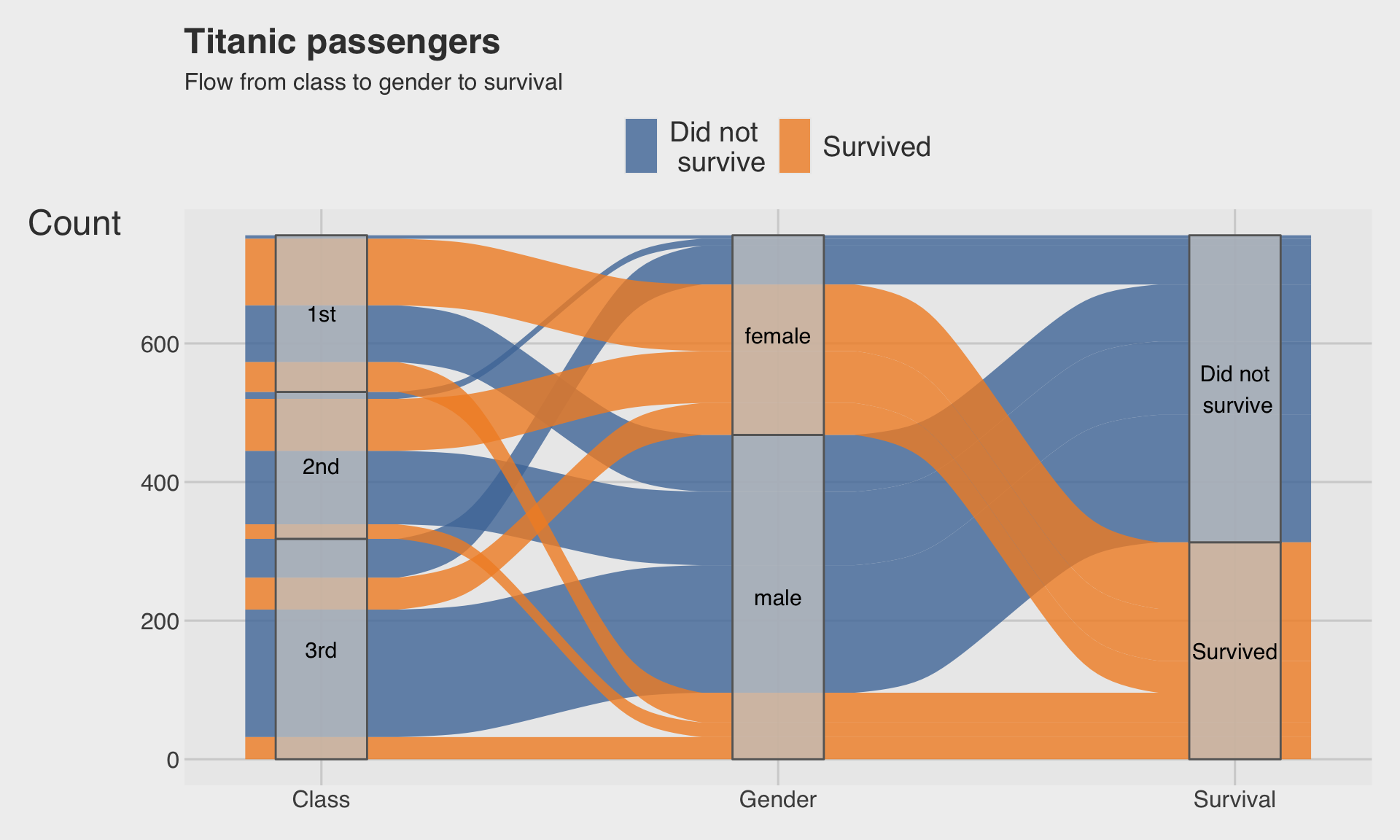
  • The bands represent flows between categories.
  • Wider bands correspond to larger counts.

🧠 When alluvial diagrams work well

  • Use them when you want to show how categories connect across stages.
  • They work best with a small number of variables and a limited number of levels.
  • If there are too many categories, the chart becomes tangled quickly.

πŸ•ΈοΈ Radar charts

🎯 What is a radar chart?

  • A radar chart compares several variables for one or more groups on the same scale.
  • Each axis starts from the center and extends outward.
  • Radar charts are visually intuitive, but comparing values across axes can be difficult.

🌍 Summarize organdata for a radar chart with ggradar()

org_radar <- socviz::organdata |>
  filter(!is.na(consent_law)) |>
  group_by(consent_law) |>
  summarize(
    donors = mean(donors, na.rm = TRUE),
    gdp = mean(gdp, na.rm = TRUE),
    health = mean(health, na.rm = TRUE),
    roads = mean(roads, na.rm = TRUE),
    txp_pop = mean(txp_pop, na.rm = TRUE)
  ) |>
  ungroup() |>
  mutate(consent_law = as.character(consent_law)) |>
  mutate(across(-consent_law, ~ rescale(.x, to = c(0, 1))))
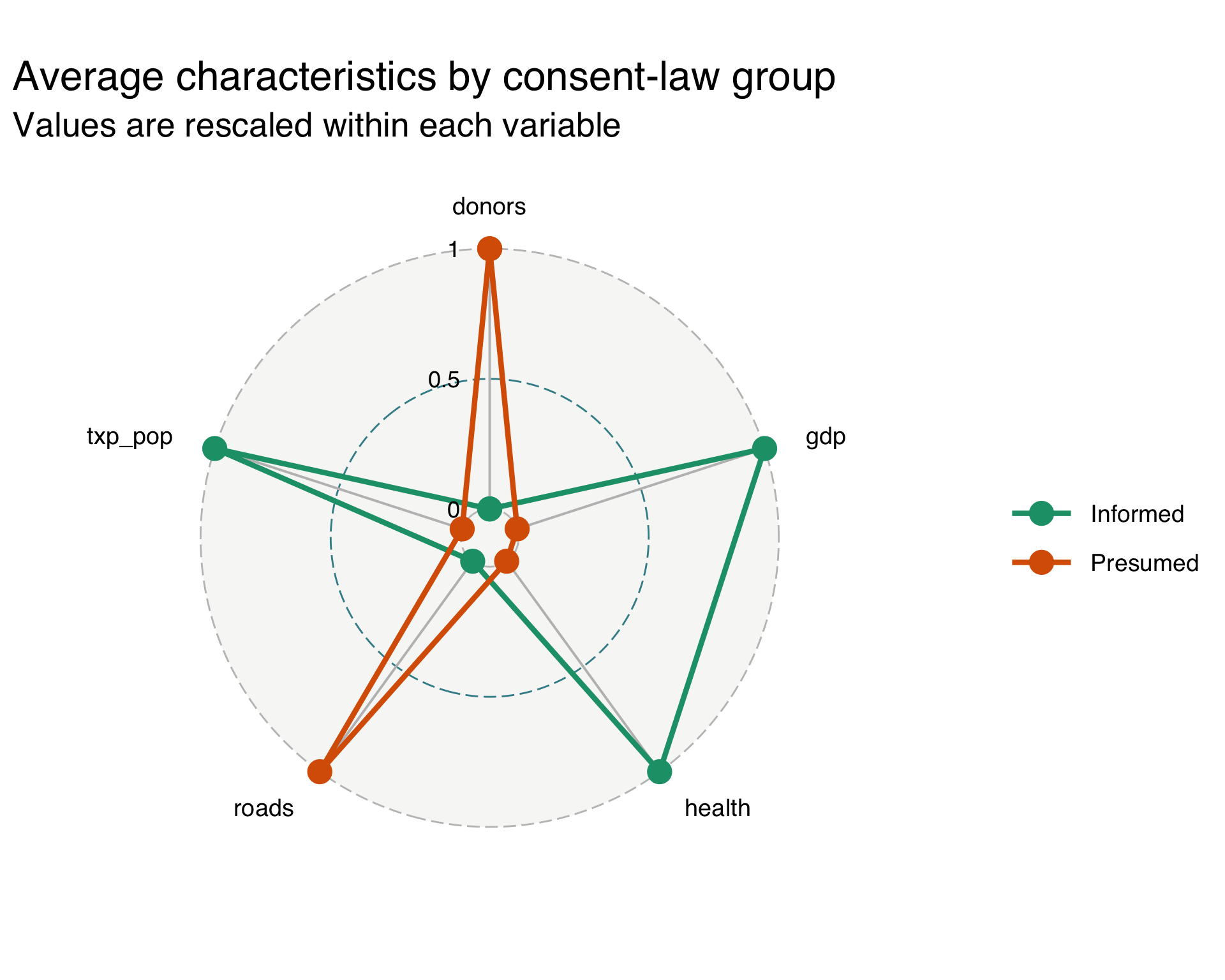
  • ggradar() expects one row per group and one column per measure.
  • It also works best when the numeric variables are on a common scale.
  • So we rescale each variable to range from 0 to 1.

πŸ•ΈοΈ Radar chart with ggradar()

ggradar(
  org_radar,
  group.colours = c("#1b9e77", "#d95f02"),
  values.radar = c("0", "0.5", "1"),
  grid.min = 0,
  grid.mid = 0.5,
  grid.max = 1,
  legend.position = "right"
) +
  labs(
    title = "Average characteristics by consent-law group",
    subtitle = "Values are rescaled within each variable"
  )

  • Each polygon summarizes the average profile of one consent-law group.
  • But exact comparison is still harder than with a dumbbell plot or slope chart.

⚠️ Radar chart caution

  • Radar charts can look impressive, but they are often hard to interpret carefully.
  • They are best for broad profile comparisons, not precise inference.
  • In many cases, a faceted dot plot is a better alternative.

πŸ”’ Scatterplot matrices

🧭 What is a scatterplot matrix?

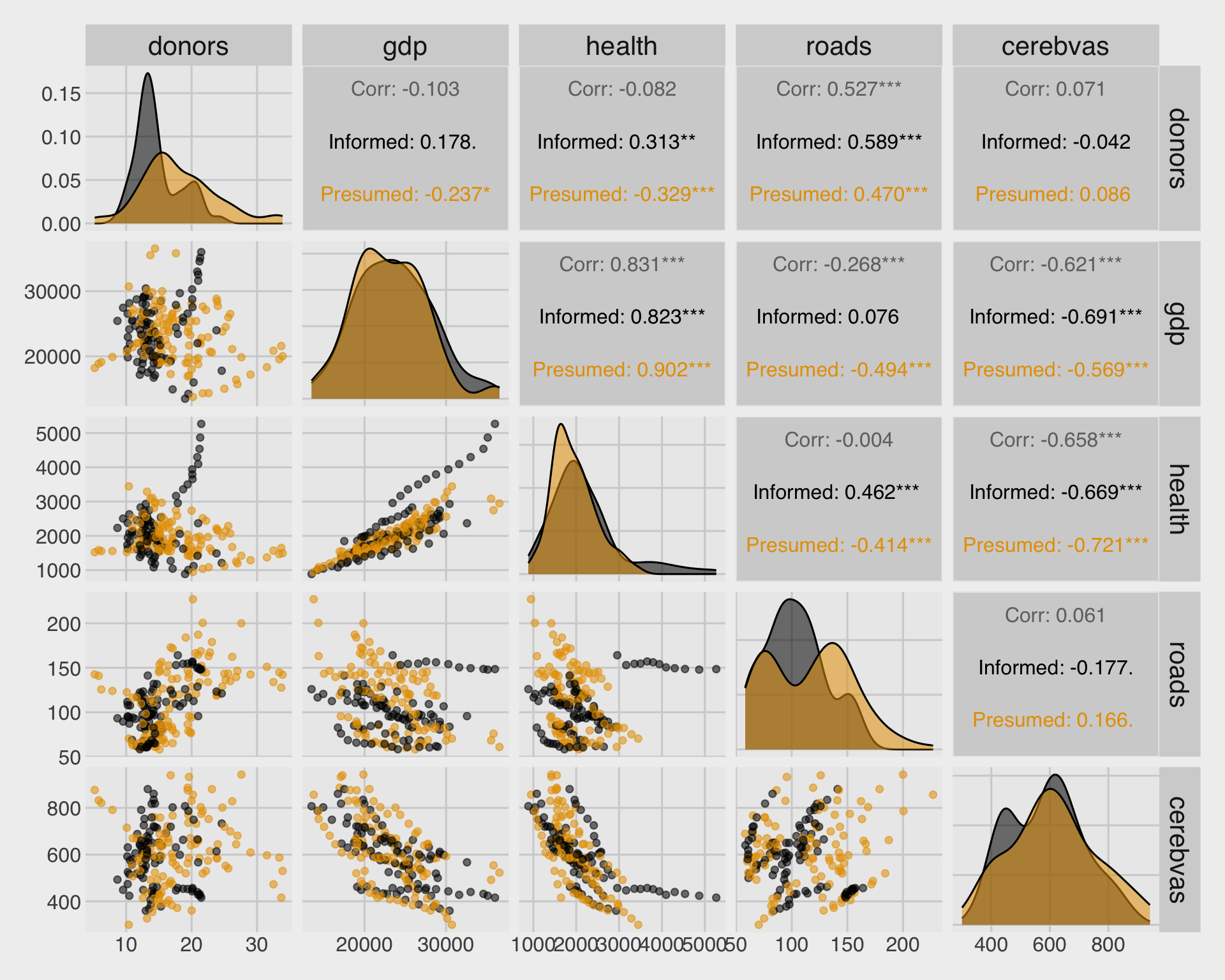
  • A scatterplot matrix shows pairwise relationships among several numeric variables at once.
  • It is very useful for exploratory data analysis.
  • The diagonal panels often show distributions, while the off-diagonal panels show bivariate relationships.

πŸ”’ Scatterplot matrix with GGally::ggpairs()
org_small <- socviz::organdata |>
  select(donors, gdp, health, roads, 
         cerebvas, consent_law) |>
  drop_na()  # drop obs. with NA

GGally::ggpairs(
  org_small,
  columns = 1:5,
  mapping = aes(color = consent_law, 
                alpha = 0.6)
) +
  scale_color_colorblind() +
  scale_fill_colorblind()

  • ggpairs() quickly creates a matrix of pairwise plots.
  • This is a powerful first look before building a more focused figure.

πŸ”’πŸ“ Scatterplot matrix with geom_smooth()

# custom function `my_scatter` 
#   for scatterplot w/ a fitted line
my_scatter <- function(data, mapping, ...){
  ggplot(data = data, mapping = mapping) + 
    geom_point(alpha = 0.5) + 
    geom_smooth(method=lm, 
                se=FALSE, ...)
}

ggpairs(org_small, 
        columns = 1:5,
        mapping = aes(color = consent_law, 
                      alpha = 0.6),
        lower = list(continuous = my_scatter)
  ) +
  scale_color_colorblind() +
  scale_fill_colorblind()
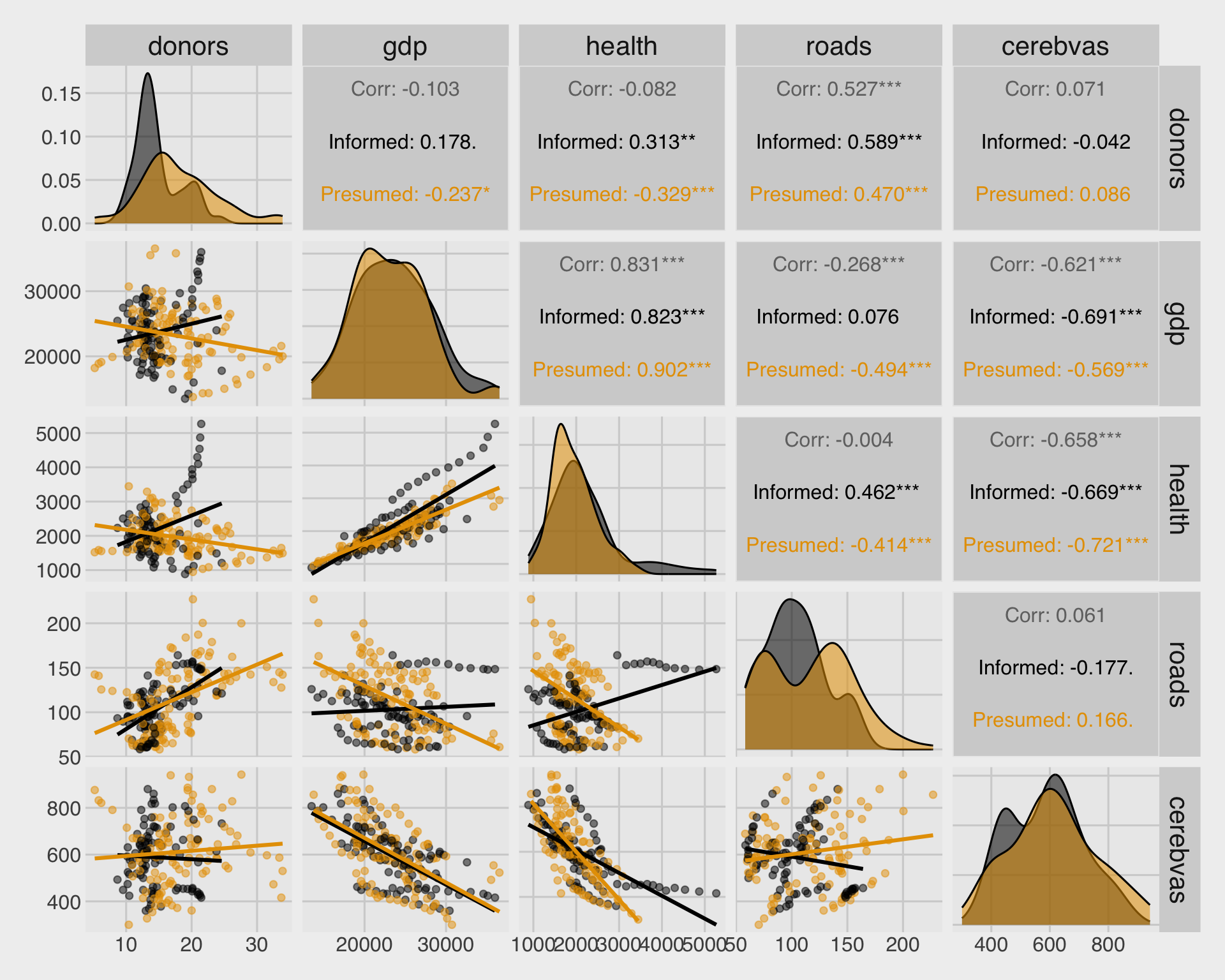
  • We can add geom_smooth() to ggpairs() using a custom function.

🧠 What to look for in a scatterplot matrix

  • Strong positive or negative relationships.
  • Nonlinear patterns, clusters, and outliers.
  • Differences in spread or relationship by group.

🟨 Heatmaps

🌑️ What is a heatmap?

  • A heatmap maps a numeric value to color across a grid.
  • It is great when the data are naturally organized as row Γ— column.
  • Time-by-category and matrix-like data are common use cases.

πŸ—ΊοΈ Heatmap: donor rates by country and year

org_heat <- socviz::organdata |>
  filter(!is.na(donors), !is.na(year)) |>
  group_by(country, year) |>
  summarize(donors = mean(donors)) |> 
  ungroup()

ggplot(org_heat,
       aes(x = year, y = fct_reorder(country, donors, .fun = mean), fill = donors)) +
  geom_tile() +
  scale_fill_viridis_c() +
  guides(
    fill = guide_colorbar(
      barheight = unit(.6, "cm"),
      barwidth = unit(8, "cm")
  )) +
  labs(
    x = NULL,
    y = NULL,
    fill = "Donors",
    title = "Organ donor rates by country and year",
    subtitle = "Color represents the donor rate"
  )
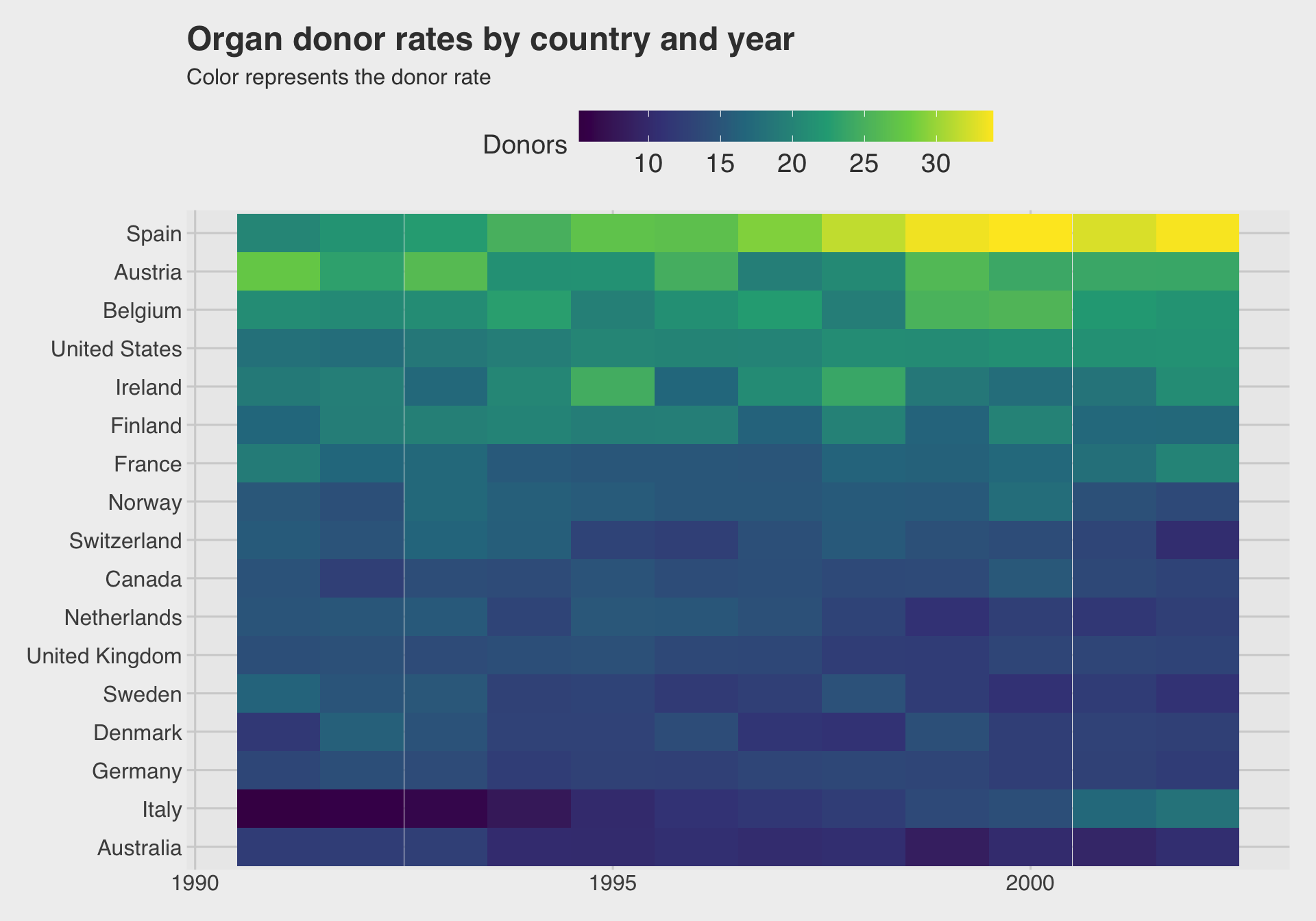
  • geom_tile() is the main workhorse for heatmaps in ggplot2.
  • The meaning comes from the color scale, so choose it carefully.

🎨 Heatmap tips

  • Use a perceptually clear fill scale.
  • Order rows and columns meaningfully whenever possible.
  • Avoid rainbow palettes when the goal is precise comparison.

πŸ”₯ Correlation heatmaps

πŸ”— What is a correlation heatmap?

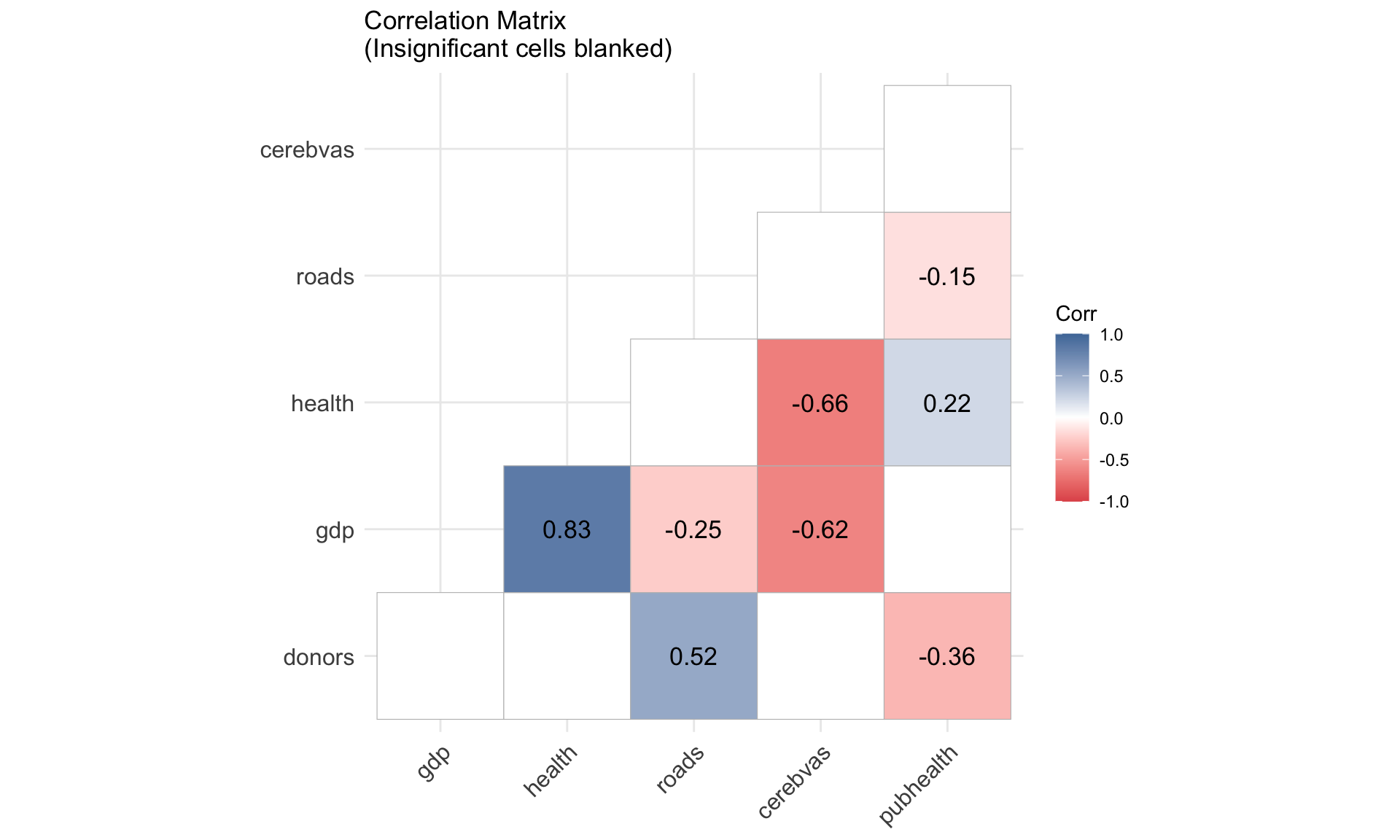
  • A correlation heatmap is a special type of heatmap for a correlation matrix.
  • It helps summarize how strongly numeric variables move together.
  • Positive and negative values are usually shown with a diverging palette.

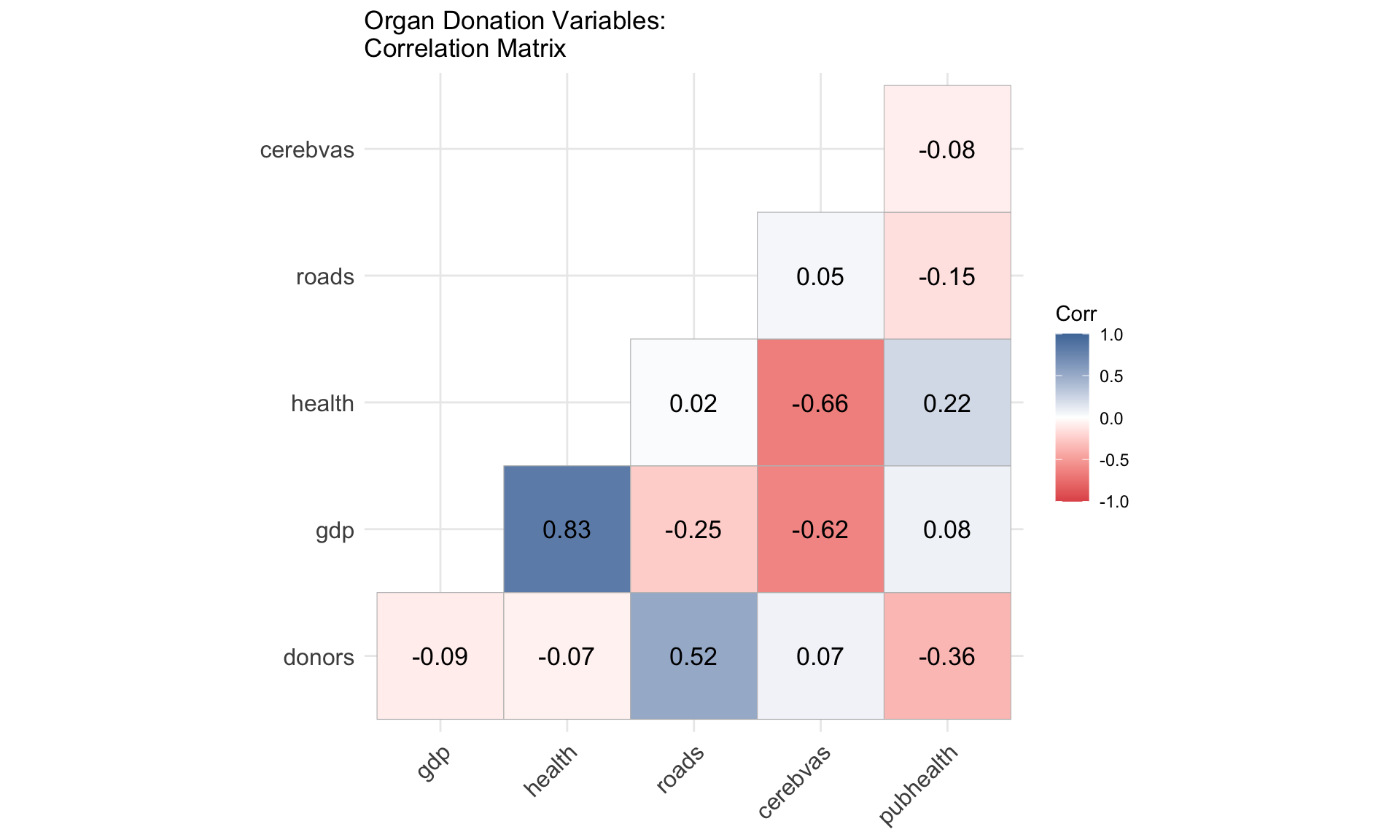
πŸ”₯ Correlation heatmap with organdata

org_cor <- socviz::organdata |>
  select(donors, gdp, health,
         roads, cerebvas, pubhealth) |>
  drop_na() |>
  cor()

ggcorrplot(
  org_cor,
   method = "square",
   type = "lower",
   lab = TRUE,
   lab_size = 4.5,
   colors = c("#E15759",
              "white",
              "#4E79A7"),
   title = "Organ Donation Variables:\nCorrelation Matrix"
)

  • Values close to 1 indicate strong positive correlation.
  • Values close to -1 indicate strong negative correlation.
  • Values near 0 indicate weak linear association.

πŸ”₯ Correlation heatmap with significance

p_mat <- cor_pmat(
  socviz::organdata |>
    select(donors, gdp, health,
           roads, cerebvas, pubhealth) |>
    drop_na()
)

ggcorrplot(
  org_cor,
  type = "lower",
  p.mat = p_mat,
  insig = "blank",
  lab = TRUE,
  lab_size = 4.5,
  colors = c("#E15759",
             "white",
             "#4E79A7"),
  title = "Correlation Matrix\n(Insignificant cells blanked)"
)
⚠️ Correlation heatmap caution

  • Correlation does not imply causation.
  • Correlation only measures linear association.
  • Always combine this chart with subject-matter thinking and other plots.

☁️ Word clouds

πŸ“ What is a word cloud?

  • A word cloud shows term frequency using text size.
  • It is visually engaging, but it is not precise.
  • It is best used as a quick descriptive or exploratory view.

πŸ”Ή separate_rows(genre, sep = ",\\s*")

  • separate_rows() splits one cell containing multiple values into multiple rows.
  • Here, it uses the genre column.
  • The separator sep = ",\\s*" means:
    • split at each comma
    • and ignore spaces after the comma

Example

If one row has:

"Drama, Comedy, Action"

it becomes three rows:

  • Drama
  • Comedy
  • Action
  • This is helpful when multiple categories are stored in one cell and we want each category to have its own row.

πŸ”Ή unnest_tokens(word, description)

  • unnest_tokens() splits text into tokens.
  • Here, it takes text from the description column
  • and creates a new column called word
  • with one row for each word

Example

If description is:

"Data analytics is fun"

it becomes:

  • data
  • analytics
  • is
  • fun
  • By default, words are usually converted to lowercase.

πŸ”Ή anti_join(stop_words, by = "word")

  • anti_join() removes rows that match another dataset.
  • Here, the other dataset is tidytext::stop_words.
  • stop_words contains very common words such as:
    • the, and, of, to
  • So this step removes uninformative common words from the tokenized text.

Example

If your word column contains:

  • data, the, analysis, and

after this step, only these remain:

  • data
  • analysis

::::

πŸ”Ή filter(str_detect(word, "[a-z]"))

  • The pattern "[a-z]" means:
    • contains at least one lowercase English letter
  • So this step keeps words that include letters and removes tokens that are only:
    • numbers, punctuation, symbols

Example

Suppose word contains:

  • data
  • 2024
  • !
  • model

after this, only these remain:

  • data
  • model

🎬 Prepare Netflix descriptions by genre

netflix_words <- netflix |>
  separate_rows(genre, sep = ",\\s*") |> # separete() + pivot_longer()
  unnest_tokens(word, description) |>
  anti_join(stop_words, by = "word") |>
  filter(str_detect(word, "[a-z]")) |>
  count(genre, word, sort = TRUE) |> 
  group_by(genre) |>
  mutate(tot = sum(n())) |> 
  ungroup() |> 
  filter(dense_rank(-tot) <= 4) |>
  group_by(genre) |>
  slice_max(n, n = 30)
  • We tokenize the description column into words.
  • Then we remove common stop words and count the most frequent words by genre.

☁️ Word cloud by genre

library(ggwordcloud)

netflix_words |>
  ggplot(aes(label = word,
             size = n)) +
  geom_text_wordcloud_area() +
  facet_wrap(~ genre) +
  scale_size_area(max_size = 18) +
  theme_minimal() +
  theme(
    strip.text = element_text(face = "bold"),
    panel.grid = element_blank()
  )

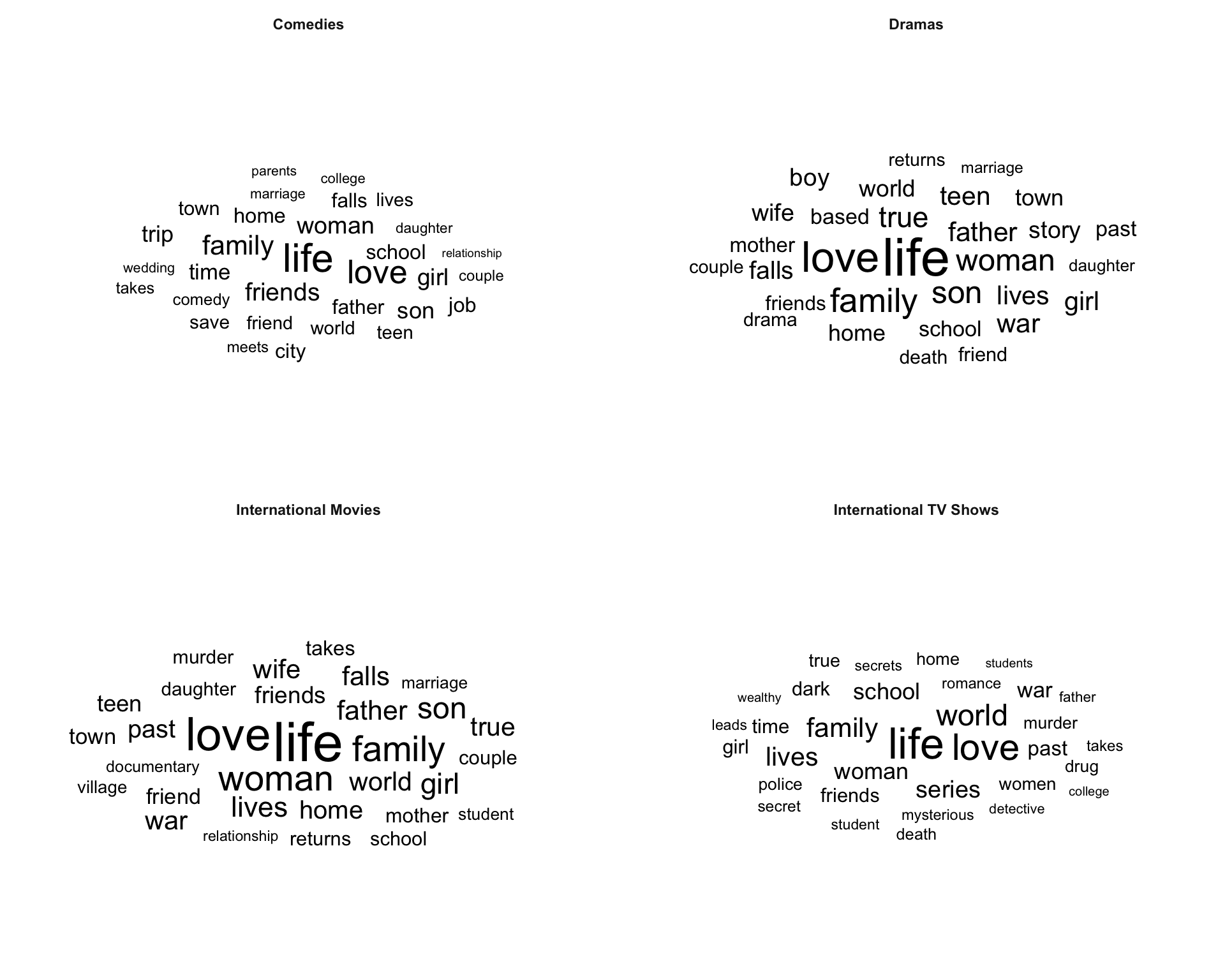
  • Larger words appear more often in descriptions for that genre.
  • This is useful for quick exploration of text themes.

⚠️ Word cloud caution

  • Word clouds are visually appealing but not analytically precise.
  • A ranked bar chart of word frequencies is usually better for careful comparison.
  • Still, word clouds can be good for classroom demos and storytelling.