Lecture 3

Data Collection I: DataFrame; Spyder IDE; Scrapping Web-tables with pd.read_html()

Byeong-Hak Choe

SUNY Geneseo

February 9, 2026

๐Ÿผ Pandas Series and DataFrame

Pandas Series and DataFrame

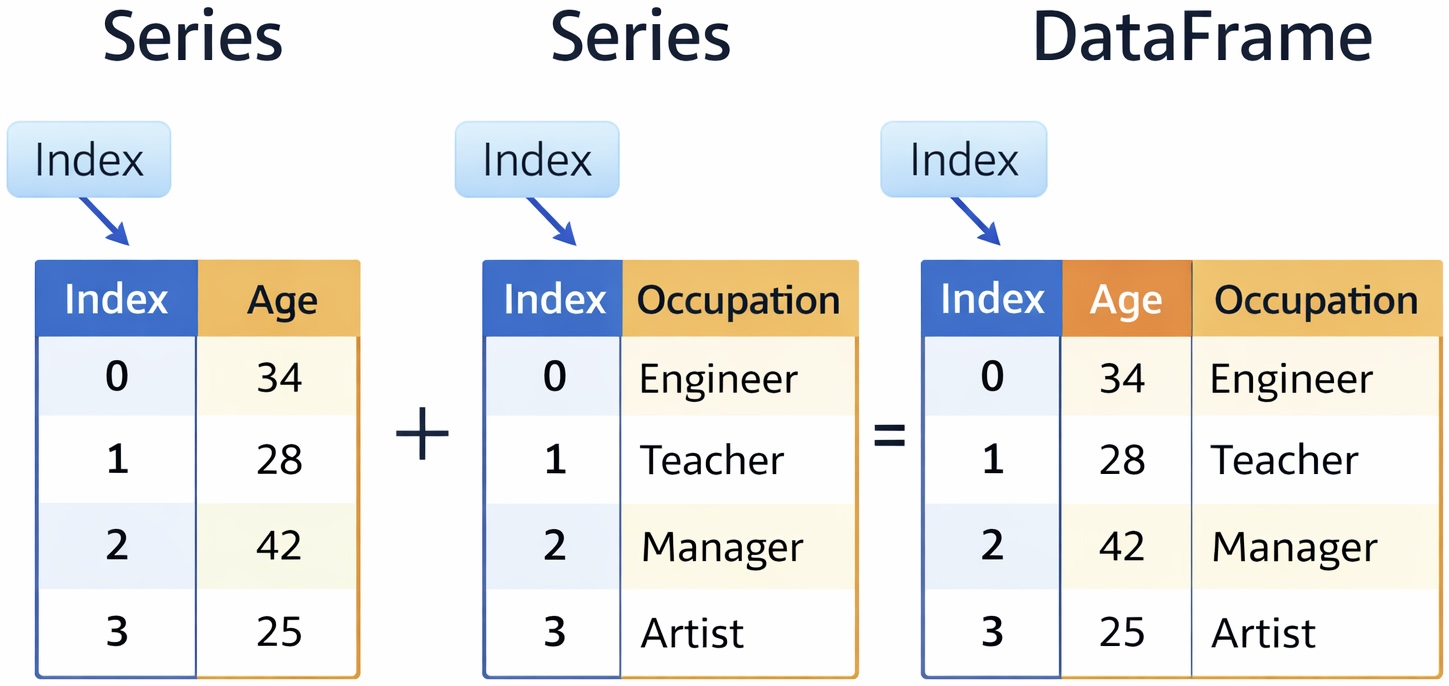
  • Series: A one-dimensional object containing a sequence of values (like a list).

  • DataFrame: A two-dimensional table made of multiple Series columns sharing a common index.

๐Ÿง Observations in DataFrame

  • Rows in a DataFrame represent individual units or entities for which data is collected.
  • Examples:
    • Student Information: Each row = one student
    • Employee Information: Each row = one employee
    • Daily S&P 500 Index Data: Each row = one trading day
    • Household Survey Data: Each row = one household

๐Ÿท๏ธ Variables in DataFrame

  • Columns in a DataFrame represent attributes or characteristics measured across multiple observations.
  • Examples:
    • Student Data: Name, Age, Grade, Major
    • Employee Data: EmployeeID, Name, Age, Department
    • Customer Data: CustomerID, Name, Age, Income, HousingType

Note

  • In a DataFrame, a variable is a column of data.
  • In general programming, a variable is the name of an object.

โœจ Tidy DataFrame

Variables, Observations, and Values
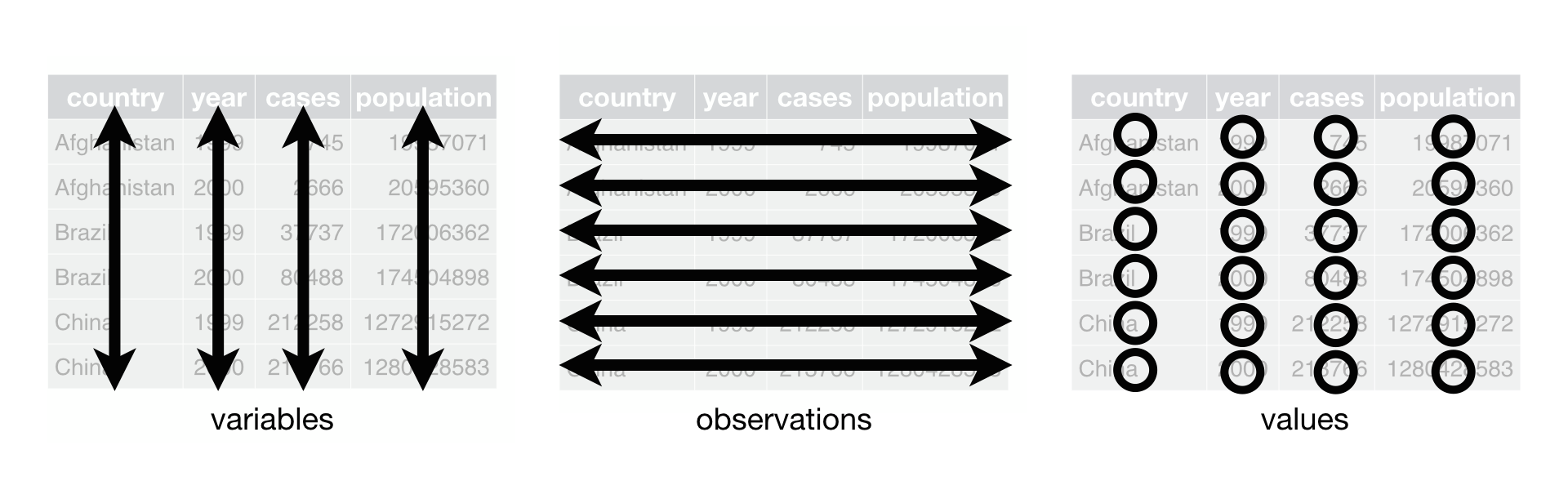
  • A DataFrame is tidy if it follows three rules:

    1. Each variable has its own column.
    2. Each observation has its own row.
    3. Each value has its own cell.
  • A tidy DataFrame keeps your data organized, making it easier to understand, analyze, and share in any data analysis.

๐Ÿ•ธ๏ธ Spyder IDE

๐ŸŸข Anaconda Distribution

  • Anaconda is a free Python distribution that includes Python, Conda (Python environment manager), and many commonly used data analytics packages.
  • Install Anaconda from the official download page:

๐Ÿ“„ What is a Python Script?

  • A Python script (*.py) is a plain-text file that contains Python code you can run from your computer (or an IDE like Spyder).
    • It is the standard format for writing reusable Python programs, such as data-cleaning pipelines, web scrapers, and automation tasks.
    • Scripts are commonly used in real-world analytics and software projects.
    • Compared to notebooks, scripts are typically better for organized, production-style code (functions, modules, and repeatable workflows).
  • For data collection topics, we will write and run Python scripts mainly in Spyder, using Anaconda Distribution as our Python environment.

๐Ÿ“ Script Editor

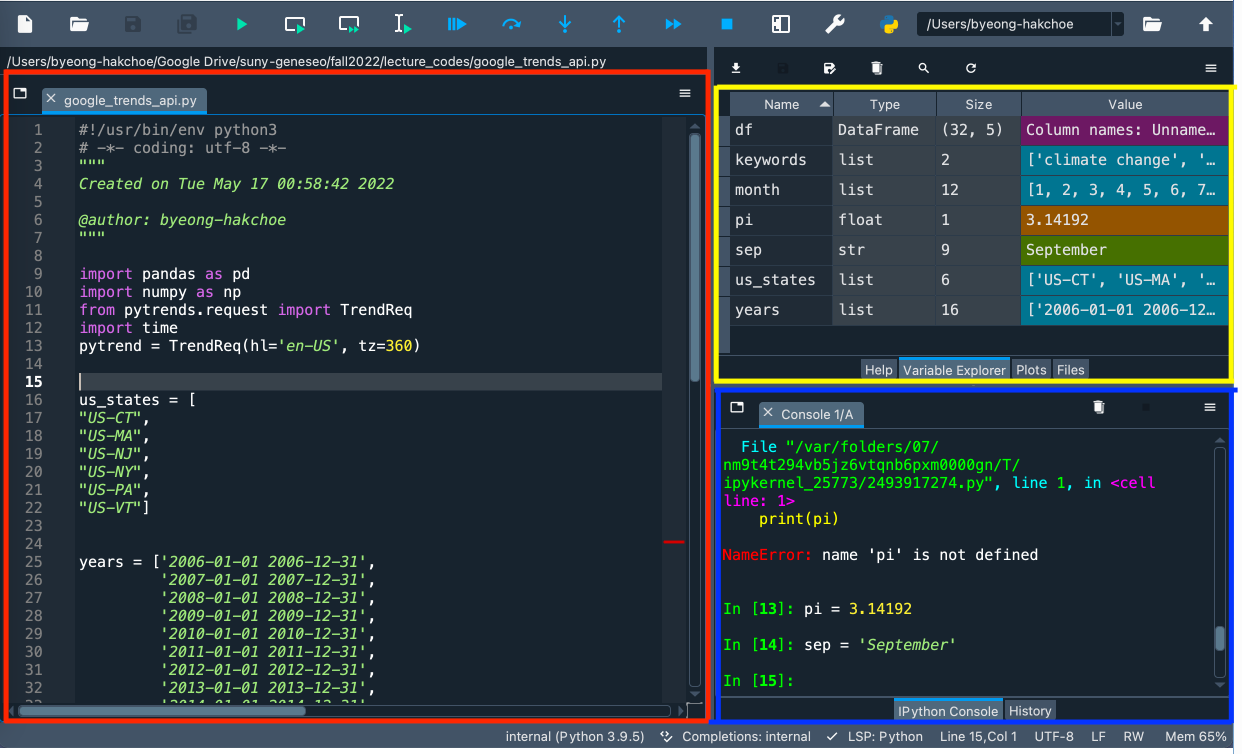
  • From Script Editor (red box), we can create, open and edit files.

๐Ÿ–ฅ๏ธ Console Pane

  • From Console Pane (blue box), we can interact directly with the Python interpreter, and type commands where Python will immediately execute them.

๐Ÿ” Variable Explorer

  • From Variable Explorer (yellow box), we can see the values of variables, data frames, and other objects that are currently stored in memory.

๐Ÿ“ฆ๏ธ Data Containers in Variable Explorer

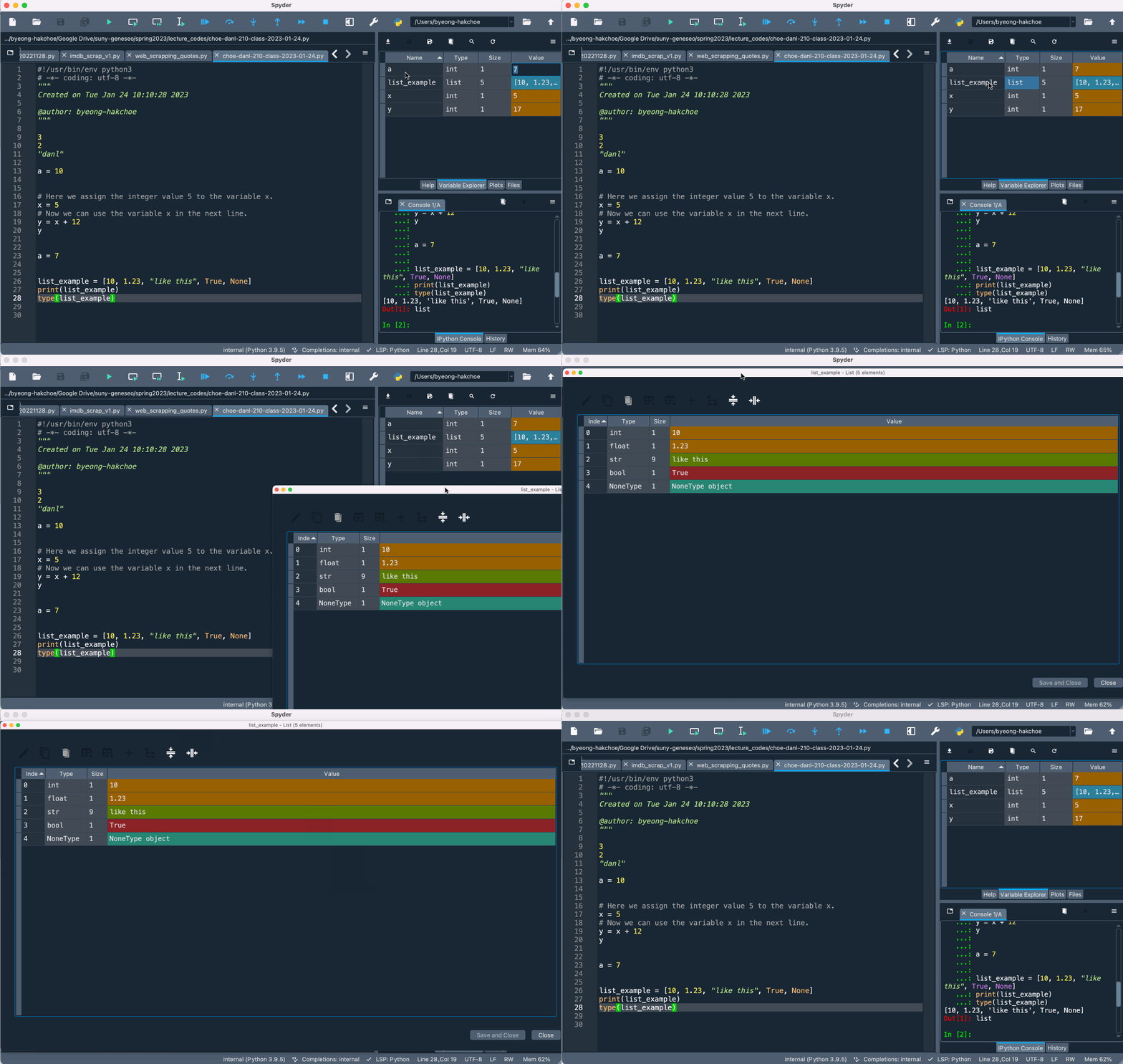
  • If we doucle-click the objects such as list and DataFrame objects, we can see what data are contained in such objects.

โŒจ๏ธ Keyboard Shortcuts

  • General shortcuts
    • Undo: Ctrl + z (command + z for Mac users)
    • Redo: Ctrl + Shift + z (command + shift + z for Mac users)
    • Selection: Ctrl + Shift + Arrow (โฌ†๏ธ โžก๏ธ โฌ‡๏ธ โฌ…๏ธ)
    • Page Up/Down: Fn + โฌ†๏ธ / โฌ‡๏ธ
  • Default shortcuts
    • Comment (#): Ctrl + 1 (command + 1 for Mac users)
    • Block-comment: Ctrl + 4 (command + 4 for Mac users)
    • Run selection (or a current line): F9
    • Run cell: Ctrl + Enter (# %% defines a cell)

๐Ÿ’ฌ Comments, Code Cells, and Keyboard Shortcuts

# %%
# ===========================================================================
# SECTION TITLE
# ===========================================================================
a = 1
  • The # mark is Spyderโ€™s comment character.

  • It is recommended to use a coding block (defined by # %%) with block commenting (Ctrl/command + 4) for separating code sections.

  • To set your keyboard shortcuts,

    • Preferences > Keyboard Shortcuts > Search โ€œrunโ€ and/or โ€œcommentโ€
    • Set the shortcuts for (1) run selection; (2) run cell; (3) toggle comment; and (4) blockcomment
    • I use command + return for running a current line (selection)

๐ŸŒ Scrapping web tables with pd.read_html()

๐ŸŒ Scrapping Tables with pd.read_html()

import pandas as pd

url = "https://www.nps.gov/orgs/1207/national-park-visitation-sets-new-record-as-economic-engines.htm"
tables = pd.read_html(url)
len(tables)
df_0 = tables[0]
  • read_html() read HTML tables into a list of DataFrame objects.

๐Ÿท๏ธ Setting Column Names

  • How can we set the first row of a DataFrame as its column names?
  • How can we remove the first row ?
df_0 = tables[0]
df_0.columns = df_0.iloc[0]  # Set the first row as column names
df_0 = df_0.iloc[1:]  # Keeps rows from position 1 onward

โœ… What is DataFrame.iloc[]?

  • DataFrame.iloc[...] is integer-location indexing:
    • It selects rows by position (0, 1, 2, โ€ฆ), not by index labels.
    • Slicing works with DataFrame.iloc[]
  • df_0.iloc[0] returns the first row (position 0) as a Series.

โš™๏ธ Dot Operators, Methods, and Attributes

โšซ Dot operator

  • The dot operator (DataFrame.) is used for an attribute or a method on objects.

๐Ÿ› ๏ธ Method

  • A method (DataFrame.METHOD()) is a function that we can call on a DataFrame to perform operations, modify data, or derive insights.
    • e.g., df.info()

๐Ÿท๏ธ Attribute

  • An attribute (DataFrame.ATTRIBUTE) is a property that provides information about the DataFrameโ€™s structure or content without modifying it.
    • e.g., df.columns

๐Ÿ“‘ Getting a Summary of a DataFrame

df_0.info()    # method
df_0.count()   # method
df_0.shape     # attribute
df_0.columns   # attribute
  • Every DataFrame object has a .info() method that provides a summary of a DataFrame:
    • Variable names (.columns)
    • Number of observations and variables (.shape)
    • Number of non-missing values in each variable (.count())
      • Pandas often displays missing values as NaN.

๐Ÿ“ Absolute Pathnames

  • An absolute pathname tells the computer the exact location of a file, starting from the very top folder of your computer.

    • This location never changes, no matter where you are working in Python.
  • In Python, you can see the working directory โ€” the folder where Python is currently โ€œlookingโ€ for files โ€” by running os.getcwd() in the Console.

  • Examples of an absolute pathname for custdata_rev.csv:

    • On a Mac:
      /Users/user/documents/data/custdata_rev.csv
    • On Windows:
      C:\\Users\\user\\Documents\\data\\custdata_rev.csv
      • Note: In Windows, we use double backslashes (\\) because a single backslash (\) is treated as a special character in Python.

๐Ÿ”— Relative Pathnames

  • A relative pathname specifies the location of a file relative to the working directory.
  • Examples of a relative pathname for custdata_rev.csv:
    • Absolute pathname:
      /Users/user/documents/data/custdata_rev.csv
    • Working directory:
      /Users/user/documents/
    • Relative pathname:
      data/custdata_rev.csv

๐Ÿ“๐Ÿ“ Finding the Absolute Path of a File/Folder

Windows 11

  • Step 1: Navigate to your folder using File Explorer.
  • Step 2: Right-click the desired file or folder.
  • Step 3: Click Copy as path.
  • Step 4: Paste the path into your Python script (Ctrl + V).
  • Step 5: Adjust backslashes in the path:
    • Option 1: Replace backslashes (\) with forward slashes (/).
    • Option 2: Replace single backslashes (\) with double backslashes (\\).

Mac

  • Step 1: Navigate to your folder using Finder.
  • Step 2: Select the file or folder by clicking on it.
  • Step 3: Copy the path (Option + Command + C).
  • Step 4: Paste the path into your Python script (Command + V).

๐Ÿ“‘ CSV Files

  • A CSV (comma-separated values) file is a plain text file where each value is separated by a comma.
    • CSV files are widely used for storing data from spreadsheets and databases.

๐Ÿ’พ Exporting a DataFrame as a CSV File with to_csv()

  • To export DataFrame as a CSV file, we use the to_csv() method.
    • Before exporting, you can set the working directory (WD) to organize and manage the location of CSV files.
    • Create a data directory within your WD. This helps in keeping your data analysis and exports well-organized.
# Import the os module to interact with the operating system
import os  

# Set the working directory path
wd_path = 'ABSOLUTE_PATHNAME_OF_YOUR_WORKING_DIRECTORY' # e.g., '/Users/bchoe/Documents/DANL-210'
os.chdir(wd_path)  # Change the current working directory to wd_path
os.getcwd()  # Retrieve and return the current working directory

# index=False to not write the row index in the CSV output
df_0.to_csv('data/table.csv', index =False)

Scrapping Tables with pd.read_html()

Letโ€™s do Classwork 3!